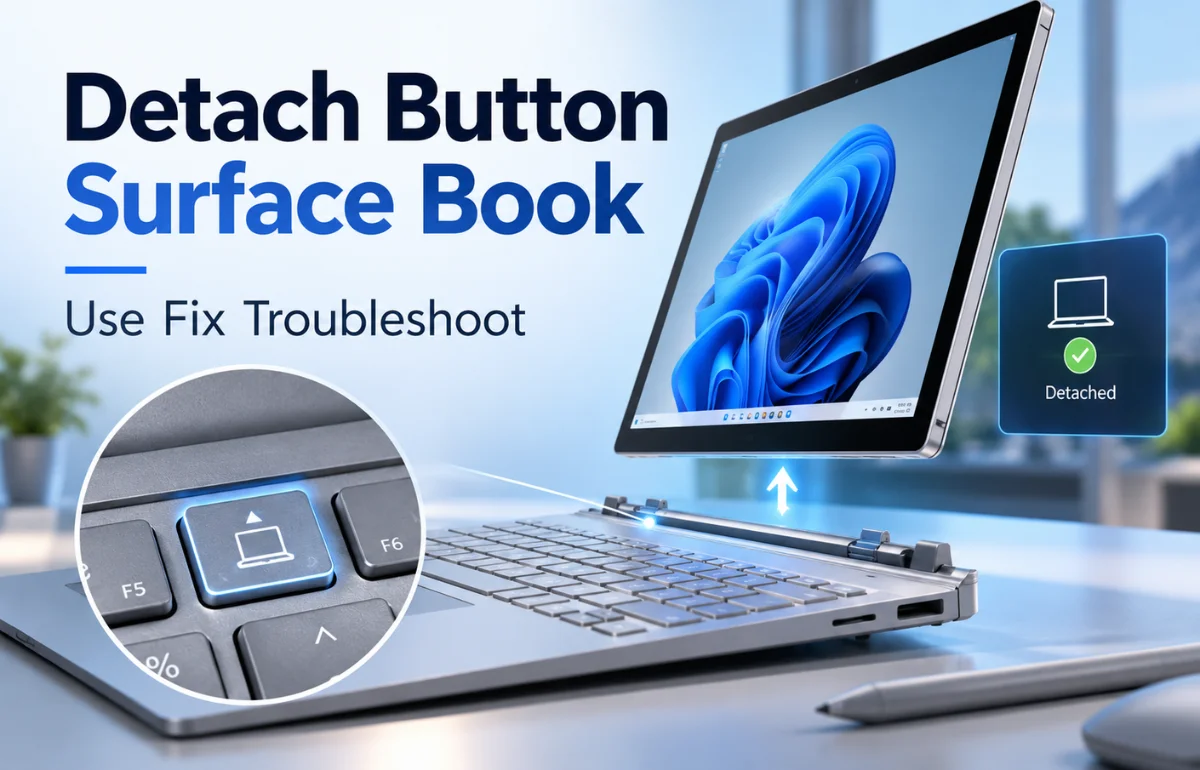
The search term “Detach button surface book” refers to the dedicated keyboard key that releases a Microsoft Surface Book’s screen from its keyboard base. Microsoft calls it the Detach key. It lets you change from a laptop to a standalone Windows tablet. Request detachment and wait for release confirmation before lifting the display away from the base.
I treat the button as a request for permission to separate the hardware. A screen that stays attached does not automatically mean the key has failed. Battery charge, the connection between the two sections, and applications using a base-mounted graphics processor can affect what happens next.
Below, I explain normal operation, how to interpret a failed attempt, and how to narrow down the cause without turning a small problem into damaged hardware.
Where Is the Surface Book Detach Button?
Look along the upper-right area of your Surface Book keyboard for the key showing a display separating from its base. The symbol is more useful than memorizing a position, especially when comparing keyboard layouts.
This article covers the original Surface Book, Surface Book with Performance Base, Surface Book 2, and Surface Book 3. Identify your generation before choosing model-specific troubleshooting instructions.
Before following a repair video, I would check the exact device name. Instructions for another Surface product can describe a different keyboard connection or restart procedure. A familiar silver case is not enough to identify the hardware.
If you are helping someone remotely, ask for the model name and a description of the key’s response. “The screen will not come off” leaves out the most useful evidence: whether the light changes, Windows displays a message, or one side releases.
How to Use the Detach Button Correctly
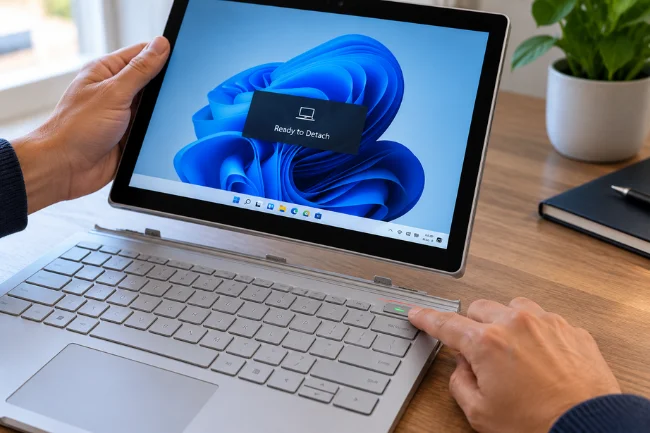
Put the laptop on a stable surface and save your work. Support the display so it cannot fall when the connection releases.
Microsoft’s Surface Book 2 instructions say to hold the Detach key until it turns green and Windows shows “Ready to Detach.” Align the display’s slots with the base’s tabs when reconnecting.
I would lift the released screen evenly, without twisting one corner upward, and lower it carefully when reattaching it.
I noticed a useful detail while comparing Microsoft’s pages: its troubleshooting article describes a brief press followed by a wait of about ten seconds. The feature page describes holding the key until readiness appears. Both put the same condition before separation: wait for confirmation.
My practical advice is to make one deliberate attempt and observe the result. Repeatedly tapping the key while pulling on the screen makes it harder to distinguish a delayed response from a connection problem.
If the display resists, stop lifting. A successful request should not require you to wrestle with the hinge. Keeping the screen supported also lets you read any message before deciding what to do next.
What Changes When the Screen Is Detached?
Detachment changes the resources available to your computer. On Surface Book 3 configurations with NVIDIA graphics, that discrete GPU sits in the keyboard base. The display retains integrated Intel graphics; the entry-level 13.5-inch Core i5 version has integrated graphics only.
That distinction explains why a task can behave differently after separation. When recommending tablet mode, I consider the activity you plan to continue and the graphics resources it needs.
| Arrangement | Keyboard base attached | Practical use |
|---|---|---|
| Laptop mode | Yes, facing normally | Typing and touchpad work |
| Tablet mode | No | Handheld reading and touch input |
| View mode | Yes, display reversed | Hands-free viewing or sharing |
| Studio mode | Yes, reversed and folded down | Drawing or handwriting on a supported screen |
Microsoft describes these four arrangements for Surface Book 2. View mode uses the base as a stand; Studio mode folds the reversed display down for pen and touch work.
For a long drawing session at a desk, I would consider Studio mode before removing the screen entirely. For reading away from the desk, carrying only the display makes more sense. The best arrangement depends on whether mobility or support matters more.
Read the Detach Light Before Troubleshooting
The light and Windows message give you a better starting point than guessing which component is broken.
| What you observe | Microsoft’s documented meaning or instruction |
|---|---|
| Green with a readiness message | Proceed with normal separation |
| Brief red light with a depleted battery | Charge before trying again |
| Flashing green | Check whether the keyboard is seated correctly |
| Only one side releases | Rejoin the sections, then retry |
Microsoft requires both batteries to be above 10 percent for detachment. One sufficiently charged battery does not satisfy that requirement.
Record the light alongside the message. A color alone is easy to misremember, and a screenshot can preserve the wording of an application warning.
Also distinguish “nothing happens” from “Windows refuses.” Those descriptions lead to different tests. A refusal gives you information about a condition that needs resolving; silence gives you less information about whether the request was received.
Detach Button Surface Book Not Working
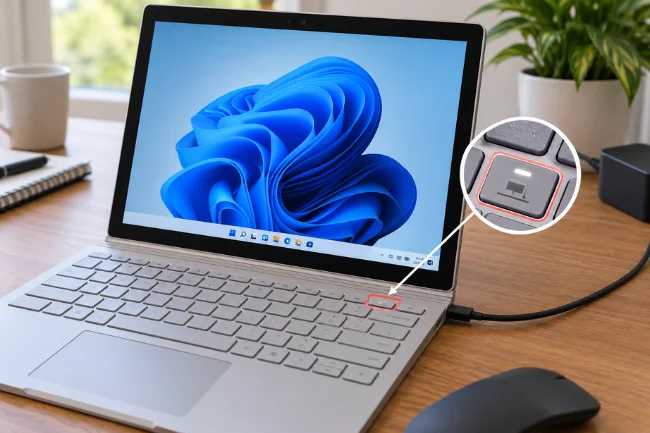
Start With a Controlled Retry
Save open files, connect the appropriate charger, and give the device time to charge. Then restart Windows normally and try once with your usual applications closed.
I prefer this small test because it creates a useful comparison. If release works after a restart but fails when one particular application opens, you have a repeatable pattern to investigate.
If nothing changes, write down that result rather than repeating the same attempt indefinitely. Troubleshooting becomes more productive when each action answers a question.
Avoid changing graphics settings, startup entries, and drivers all at once. Even if the problem disappears, you will not know which change mattered or whether you introduced another issue.
Resolve Applications Using the Base GPU
On applicable Surface Book models, an application using the discrete GPU can prevent normal detachment. Microsoft explains that frequently detaching during graphics-intensive work may require closing the application first.
Save the project before closing anything named in the warning. Use the application’s normal exit command first, especially if it is exporting, rendering, or writing a file.
Surface Book 3 also supports Safe Detach for compatible applications, allowing work to move to integrated graphics. This is application-dependent, so it is not a promise that every program can stay open.
That gives you a useful distinction: a warning during one workload does not establish that the release hardware is defective. Test again after the named program closes before drawing that conclusion.
Compare the Keyboard Key With the Windows Control
Microsoft provides a Detach icon in the taskbar as another way to request release. download.microsoft.com If it is missing, check whether Surface DTX is disabled in Task Manager’s startup entries, enable it if necessary, and restart.
I recommend comparing the two controls. If the Windows control works consistently while the keyboard key does not, that result points attention toward the key or its input path. It does not, by itself, prove which component needs replacing.
If neither control works, a wider issue remains possible. Record whether both attempts produce the same warning, the same light response, or no response at all.
Check Available Drivers and Firmware
Use Microsoft’s Surface driver and firmware download guidance for your exact model and Windows version. Its support page explains automatic updates and model-specific manual packages.
My preference is to start with Microsoft’s packages. A model-specific source gives you a clearer record of what you installed and a better basis for asking for support afterward.
Before updating, Microsoft recommends connecting power, charging to at least 40 percent, and using a stable internet connection. Keep the device powered throughout installation. That preparation threshold is separate from the battery requirement for detachment.
Check the update history before and after installation. If the issue began immediately after a change, record the date and package details. Timing is a clue worth preserving, although it does not establish causation.
Restart Procedures Differ Between Generations
Try a normal Windows restart while the device responds. A forced restart belongs later, when the computer is frozen or a normal restart is unavailable.
Microsoft’s current instructions for Surface Book 2 and later say to hold Power until the device shuts down, restarts, and displays the Windows logo, approximately 20 seconds.
For the original Surface Book, Microsoft specifies holding Volume Up and Power together for about 15 seconds, releasing both, waiting ten seconds, then pressing Power to start it again.
Identify the generation before using either procedure. Advice that says “hold the buttons” without naming the model leaves out information you need.
A forced restart can interrupt unsaved work. Once the computer responds again, give Windows time to finish starting before testing detachment. That produces a cleaner comparison than pressing the key during startup.
Clean and Inspect Without Forcing Separation
If normal detachment succeeds, inspect the exposed connection area under good lighting. Microsoft identifies dirty connectors as a potential source of attachment and detachment trouble. Let cleaned contacts dry fully and check for leftover fibers before reconnecting.
For general Surface cleaning, Microsoft advises unplugging the device and keeping liquid out of openings. It also says not to spray or pour cleaning liquid directly onto the Surface.
Read the connector-specific instructions before choosing a cleaner. Guidance for a touchscreen, outer case, and electrical contacts can differ; using the same treatment everywhere is an unnecessary gamble.
If the screen is still locked in place, do not attempt to clean inaccessible contacts by pushing a tool into the joint. You have not gained access simply because another owner’s video shows a disassembled device.
Visible deformation, persistent uneven release, or a problem following a drop deserves inspection by someone familiar with this hardware. I would stop repeated attempts and document what changed.
A Practical Way to Narrow Down Intermittent Failures
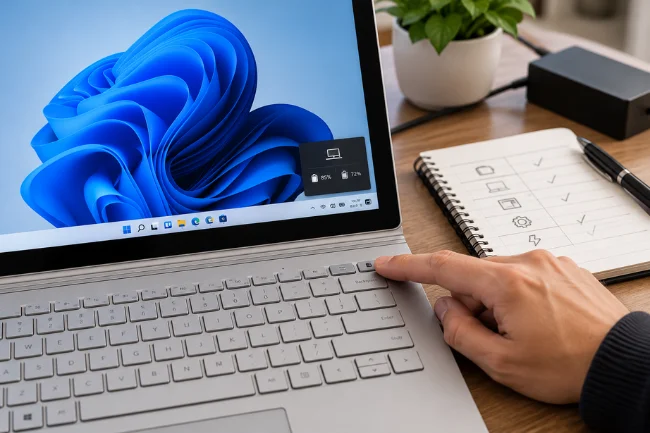
For an intermittent Detach button Surface Book problem, I recommend keeping a short record of a few ordinary attempts. My aim is to turn an occasional failure into a pattern you can describe accurately.
Record the model, both battery readings if available, open applications, charging state, light behavior, and the exact Windows message. Note whether you used the physical key or the taskbar control.
Then change one condition at a time. Compare a freshly restarted session with your normal workload. Compare the two release controls. If the device detaches normally, compare behavior before and after following Microsoft’s connector-cleaning guidance.
Here is how I would interpret a hypothetical result: suppose release works after startup, fails when a graphics application opens, and works when that application closes. The application is a stronger lead than the physical key.
Now imagine the taskbar control repeatedly works while the key does not under the same conditions. That comparison shifts the investigation toward the keyboard input. Neither example is a laboratory diagnosis, but each gives a technician more useful evidence than “sometimes stuck.”
This approach also helps avoid unnecessary purchases. Before ordering a replacement base, ask whether you can reproduce the fault and explain why that part is the likely cause.
Charging the Detached Display and Planning Tablet Use
Microsoft’s Surface Book 2 guidance identifies a charging port at the bottom center of the detached display. Connect the compatible Surface power supply there when you leave the keyboard behind.
Check the display’s charge before leaving the keyboard behind. A successful release tells you the separation conditions were satisfied; it does not tell you how long your planned work will last.
For a useful personal runtime check, try your actual reading, note-taking, or browsing session near a charger first. Record the starting charge, elapsed time, and finishing charge. Repeat under similar conditions before relying on that estimate for travel.
Treat the result as a planning aid, not a guaranteed battery specification. Screen brightness and workload can change from one session to another, and an older device may no longer match expectations formed when it was new.
Carry the detached display in a protective sleeve. Microsoft recommends additional protection when transporting Surface devices and avoiding heavy pressure or impacts.
What Surface Book Owners Should Know in 2026
All Surface Book generations have passed Microsoft’s driver and firmware servicing end dates. The original Surface Book and Performance Base version ended servicing on November 13, 2021; Surface Book 2 on June 30, 2023; and Surface Book 3 on April 1, 2025.
Those dates describe new Surface driver and firmware servicing. Windows operating-system support follows its own lifecycle, which Microsoft distinguishes from hardware servicing.
For troubleshooting, I would therefore check whether the machine has the final available packages rather than assume a new Surface firmware fix will arrive. An older article promising a forthcoming update may no longer be useful.
If you are considering a used Surface Book, ask to see normal detachment and reattachment before purchasing. Check the exact model, battery behavior, and your intended Windows configuration as separate questions.
A working Detach key is one useful check, but it does not establish the condition of every other component. Likewise, an application warning should not automatically disqualify a device before the workload is examined.
Make the Next Attempt Informative
The Detach button Surface Book feature is easier to troubleshoot when you observe the response before changing anything. Start with charge, a saved workload, and one deliberate request. Then compare controls or applications according to what happens.
If the problem persists, take your short record to a repair provider. Clear evidence about the light, message, model, and repeatable conditions will make that conversation more productive.
Frequently Asked Questions
Where Is the Detach Button on a Surface Book?
It is in the upper-right area of the keyboard. Look for the symbol of a screen separating from its base.
Why Will My Surface Book Not Detach?
Possible causes include insufficient battery charge, a poor connection, or an application using base-mounted graphics. Check the response before assuming hardware failure.
Can I Detach a Surface Book Without the Keyboard Button?
Yes. Use the Detach control in the Windows taskbar when available, and wait for release confirmation before lifting the screen.
Can I Charge the Surface Book Screen Without the Keyboard?
Yes. Connect a compatible Surface power supply to the charging port on the display’s bottom edge.
Can Surface Book 3 Detach While a Graphics Application Is Open?
Compatible applications can use Safe Detach. Other graphics workloads may require saving and closing the application before separation.

Noah Sterling is a technology research writer with 8+ years of experience covering emerging technologies, software trends, digital tools, and innovation. He creates practical, research-based articles to help readers understand the evolving technology landscape.