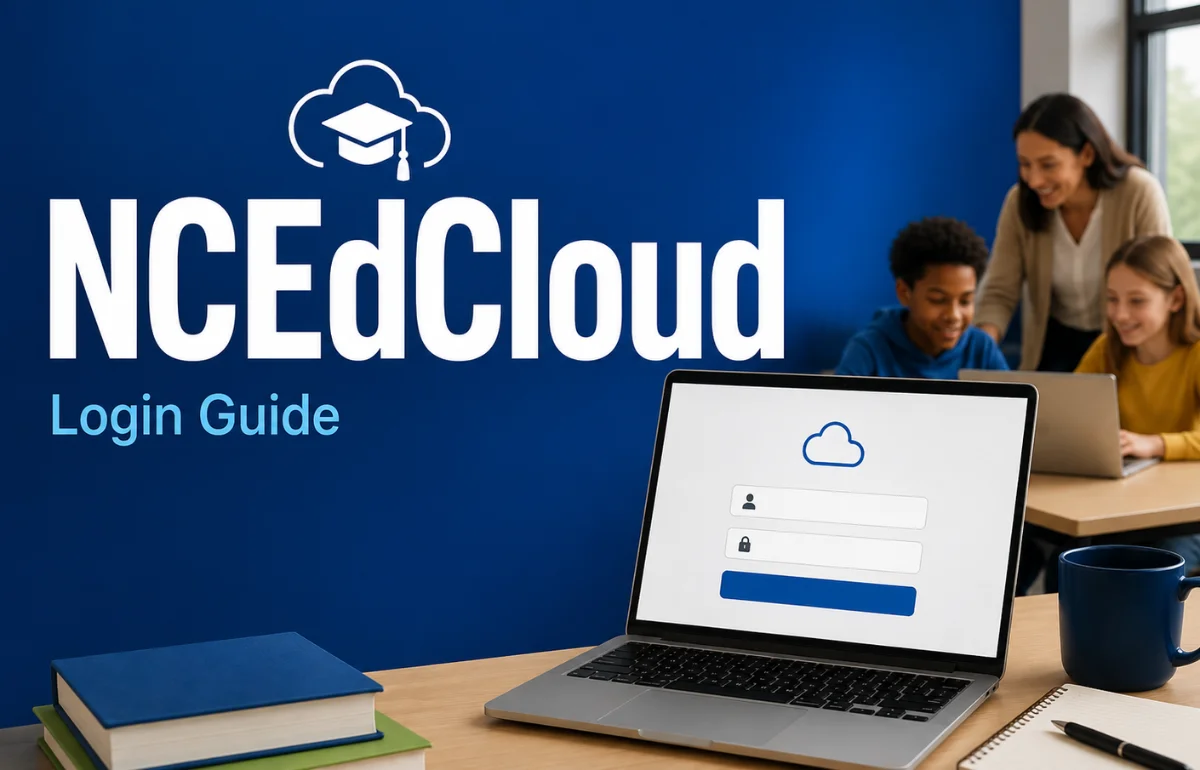
NCEdCloud is North Carolina’s statewide Identity and Access Management (IAM) service for K–12 public education. In simple terms, it gives students, teachers, and school staff one account they can use to reach approved online learning and education systems without managing a separate login for every service.
I find the easiest way to understand NCEdCloud is to think of it as a secure front door rather than a single learning app. After signing in, a user reaches an Applications area containing the services assigned to that person’s school, district, job, or student role. The official service describes NCEdCloud as providing North Carolina K–12 students, teachers, and staff with a single credential for accessing cloud-based learning resources.
That distinction matters. NCEdCloud does not replace every school platform. Instead, it verifies who you are and helps connect you securely to the systems you are authorized to use.
What Is NCEdCloud Used For?
NCEdCloud is primarily a single sign-on and identity management system.
Instead of remembering one password for an education platform, another for a district application, and several others for state services, an authorized user signs in through NCEdCloud and opens available applications from one portal.
The service also supports more than convenience. Its underlying identity-management functions include account management, access controls, automated provisioning and de-provisioning, single sign-on, and multi-factor authentication.
This is particularly useful in a large statewide school environment. A student’s access can be tied to the student’s identity, while an employee’s access can reflect the person’s assigned role.
One point I would keep in mind is that seeing fewer or different application icons than another user does not automatically mean something is wrong. NCEdCloud access is role- and organization-dependent. A teacher, student, help-desk employee, and district administrator may all see different resources after logging in.
NCEdCloud at a Glance
| Feature | What It Means for the User |
|---|---|
| Identity and Access Management | Maintains user identity and authorized access |
| Single sign-on | One account can provide access to multiple connected services |
| Applications portal | Displays resources available to the signed-in user |
| Account provisioning | Accounts and access can be created or removed through managed identity data |
| MFA | Adds another authentication factor for greater account security |
| QR badges | Can simplify sign-in for eligible younger students |
| Role-based access | Students, teachers, staff, and administrators may receive different permissions |
How to Log In to NCEdCloud
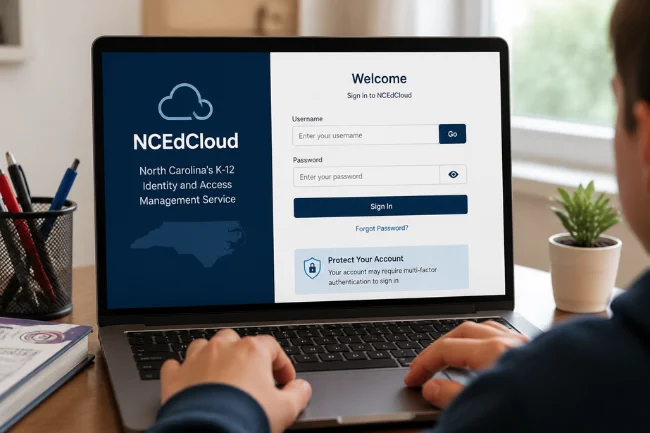
For most users, the actual NCEdCloud login process is short.
The official login address is my.ncedcloud.org. A user enters a username, selects Go, enters the account password, and continues into the portal. The Applications module is normally the main destination after authentication.
A typical login looks like this:
- Open the official NCEdCloud IAM portal.
- Enter your assigned NCEdCloud username.
- Select Go.
- Enter your password.
- Complete MFA if your account requires it.
- Open the required application from the Applications area.
I recommend going directly to the official portal instead of relying on an old browser bookmark to a temporary authentication screen.
That is more than a general browser tip. Official NCEdCloud guidance notes that an “invalid request” message may appear when someone uses the browser’s Back button or bookmarks the login screen incorrectly.
Claiming a New NCEdCloud Account
A new account may need to be claimed before the user can sign in normally.
Account claiming verifies information associated with the user and lets the person establish credentials and required account-recovery information.
Staff Account Claiming
For employees, the official process starts with Claim My Account on the login screen and the Employee Claim Policy.
The employee provides the required identifying information, passes the verification check, creates a password, and completes the required challenge questions. After the claim succeeds, the system displays the username. An employee may also be prompted to configure MFA on the next login.
If account claiming fails, I would check the data being entered before repeatedly attempting different passwords.
Official troubleshooting guidance identifies issues such as an incorrectly formatted birth date, an incorrect UID, password-policy problems, incomplete challenge-question responses, an account already marked as claimed, or identity data that has not yet reached the system.
Student Account Claiming Is Different
Student account setup depends partly on grade level and local school procedures.
Students in grade 6 and above may be allowed to claim their own accounts. Official teacher documentation says secondary students who claim accounts may need information including their student number, grade, birth date in YYYYMMDD format, and PSU code.
Primary students work differently.
For PK–5 students, the normal secondary-student account-claiming process is not used. Schools distribute account credentials directly, and QR badges can also provide an easier login method for younger students.
That is why a generic “claim your NCEdCloud account” instruction can be misleading. The right process depends on whether the user is an employee, an older student, or a younger student.
NCEdCloud Login Methods by User Type
| User | Typical Access Method | Key Detail |
|---|---|---|
| PK–5 student | School-issued credentials or QR badge | Standard student claiming is not used |
| Grade 6–12 student | School-issued credentials or account claiming | Local PSU policy can affect setup |
| Teacher/staff member | Claimed employee account | MFA applies to employees statewide |
| Help-desk/admin user | Employee account with privileged permissions | Additional administrative modules may appear |
I consider this separation one of the most useful things to understand before troubleshooting. A solution intended for a high-school student may not apply to a second-grade student, and an employee may encounter authentication requirements that students do not.
NCEdCloud MFA in 2026
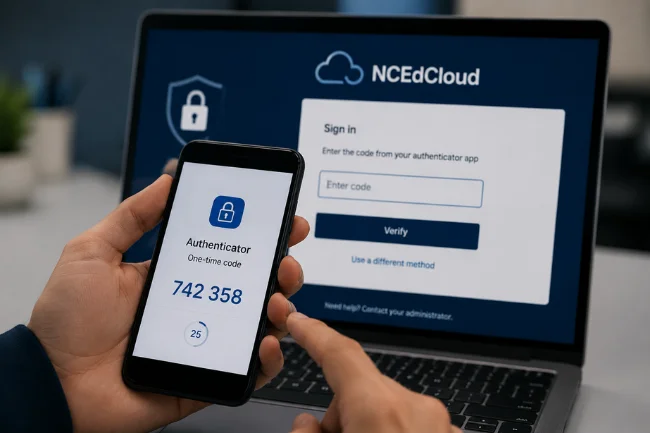
Security changed significantly for employee accounts in 2026.
Beginning July 1, 2026, multi-factor authentication became mandatory for employees statewide. NCEdCloud’s official MFA documentation explains that employees may use Time-Based One-Time Passcodes, commonly called TOTP, for the additional authentication step.
TOTP works through an authenticator capable of generating temporary codes. Official examples include Google Authenticator, Microsoft Authenticator, 1Password, and compatible browser-based authenticators. A smartphone is not strictly required.
If a valid password suddenly appears to be “not enough,” MFA may therefore be the reason rather than a password problem.
Passkeys and WebAuthn Are Also Supported
NCEdCloud now supports WebAuthn as an alternative MFA method.
WebAuthn can work with options such as Apple Touch ID or Face ID, Windows Hello, Android biometric authentication, hardware security keys such as YubiKey, and compatible passkey systems. TOTP remains an available/default approach, while WebAuthn gives users another way to satisfy MFA requirements.
From a usability perspective, this is a meaningful improvement. A passkey-based method can remove the repeated task of manually copying a six-digit code while still providing stronger authentication than a password alone.
NCEdCloud QR Badges for PK–5 Students
QR badges are designed to reduce login friction for younger students who may struggle with long usernames and passwords.
Current NCEdCloud information states that QR badges are implemented for PK–5 students, while Public School Units can opt out for one or more grade levels. Authorized teachers or staff can print badges that students use in place of manually entering their username and password.
There is one practical detail that can easily be missed: changing a student’s password can require the QR badge to be reprinted.
If a badge suddenly stops working after a password change, I would check that connection before assuming the camera, browser, or entire NCEdCloud service has failed.
Common NCEdCloud Problems and What to Check
Most NCEdCloud problems fall into one of several categories: credentials, account setup, MFA, browser/session behavior, provisioning, or an outage.
Here is the troubleshooting order I would use.
| Problem | What May Be Happening | What to Do |
|---|---|---|
| “The request is invalid” | Old login bookmark or browser Back button | Return to the main NCEdCloud portal and start a fresh session |
| Password rejected | Wrong password or account/password issue | Verify credentials or use the approved password-recovery route |
| Account cannot be claimed | Incorrect UID, birth date, account status, or source data | Verify entered data and contact local school technology support |
| MFA code fails | Wrong authenticator or device clock is out of sync | Check the correct TOTP account and make sure device time is synchronized |
| Old MFA device unavailable | Existing TOTP configuration is tied to the old setup | Request or perform a TOTP reset through the appropriate support process |
| QR badge no longer works | Student password may have changed | Have an authorized user generate/reprint the badge |
| Application icon is missing | Role, enrollment, provisioning, or local integration issue | Ask local IT to verify the user’s access rather than only resetting the password |
| Everyone appears affected | Possible platform or synchronization problem | Check the official NCEdCloud status page |
Official MFA troubleshooting specifically recommends checking that the authenticator device’s time is correct and that the user is looking at the TOTP associated with the right account. Employees can also reset their own TOTP from their user profile after logging in, while certain help-desk roles can reset TOTP for other users.
For issues that cannot be resolved by the end user, the NCEdCloud service directs users to their local IT team.
NCEdCloud Is Not the Same as NCSIS
This is an area where older online articles can create confusion.
NCEdCloud is an identity and access platform. NCSIS is North Carolina’s Student Information System.
North Carolina completed statewide implementation of Infinite Campus as the modernized NCSIS on July 1, 2025.
So an article that still describes PowerSchool as North Carolina’s current statewide SIS is relying on an older setup.
The simplest distinction is:
NCEdCloud answers, “Who are you, and which connected resources can you access?”
NCSIS handles student information and related SIS functions.
A user may move from one system into another through connected authentication, but they are not the same product.
Why a Missing App Is Different From a Failed Login
This is one troubleshooting distinction I think deserves more attention.
If you cannot sign in to NCEdCloud at all, you likely have an identity, password, MFA, account-status, or session problem.
If you can sign in successfully but cannot see a particular application, your NCEdCloud credentials have already worked. At that point, repeatedly resetting your password may accomplish nothing.
The issue may instead involve application assignment, your current role, school enrollment, employee data, provisioning, or the local integration.
NCEdCloud officially supports automated provisioning and de-provisioning as part of its identity lifecycle functions.
For users, that means “I can’t log in” and “I can’t see my app” should be treated as two separate problems.
Is NCEdCloud Secure?
NCEdCloud is built specifically as an Identity and Access Management service rather than simply a collection of school links.
The official program describes its security framework in relation to account management, access-control management, NIST Cybersecurity Framework identity and authorization controls, and NIST 800-53 access controls. It also supports MFA for state applications and managed provisioning/de-provisioning.
No account system should be treated casually, though.
I would avoid sharing passwords or QR badges, approve only expected authentication prompts, use the official portal rather than copied login pages, and report unexpected account behavior to school technology staff.
For employees, protecting the MFA method is just as important as protecting the password.
What Has Changed for NCEdCloud Users in 2026?
The biggest practical change is stronger employee authentication.
Statewide employee MFA became mandatory on July 1, 2026, and users now have TOTP plus WebAuthn/passkey options for satisfying MFA requirements.
The broader North Carolina education ecosystem has changed as well. The statewide NCSIS transition to Infinite Campus was completed in 2025, so current NCEdCloud information should be read in that newer system context rather than through outdated PowerSchool-era explanations.
For students and families, the practical takeaway remains straightforward: use the access method provided by your school and contact local technology support when identity or application access does not match what you have been assigned.
FAQs About NCEdCloud
What is NCEdCloud used for?
NCEdCloud is North Carolina’s K–12 Identity and Access Management service, giving authorized students and employees secure access to connected educational resources with a managed account.
How do I log in to NCEdCloud?
Go to the official NCEdCloud IAM portal at `my.ncedcloud.org`, enter your username and password, and complete MFA if your account requires it.
What should I do if I forgot my NCEdCloud password?
Use the available account-recovery option or contact your school’s technology support if you cannot recover access; authorized teachers and help-desk roles can also assist with certain student accounts.
Why is NCEdCloud asking me for an MFA code?
MFA is mandatory for employees statewide as of July 1, 2026, and NCEdCloud supports TOTP as well as WebAuthn/passkey-based authentication.
Can elementary students use a QR code to log in to NCEdCloud?
Yes. NCEdCloud supports QR badges for PK–5 students, although a PSU can opt out for specific grade levels.
Final Takeaway
NCEdCloud is best understood as the secure identity layer connecting North Carolina students and school employees with the digital services they are authorized to use.
If you are trying to access your account now, start with the official NCEdCloud portal, use the login method appropriate for your student or employee role, and check MFA or local school support before repeatedly changing credentials. If you can log in but an application is missing, ask your school’s technology team to verify access and provisioning rather than treating it as a simple password problem.

Noah Sterling is a technology research writer with 8+ years of experience covering emerging technologies, software trends, digital tools, and innovation. He creates practical, research-based articles to help readers understand the evolving technology landscape.