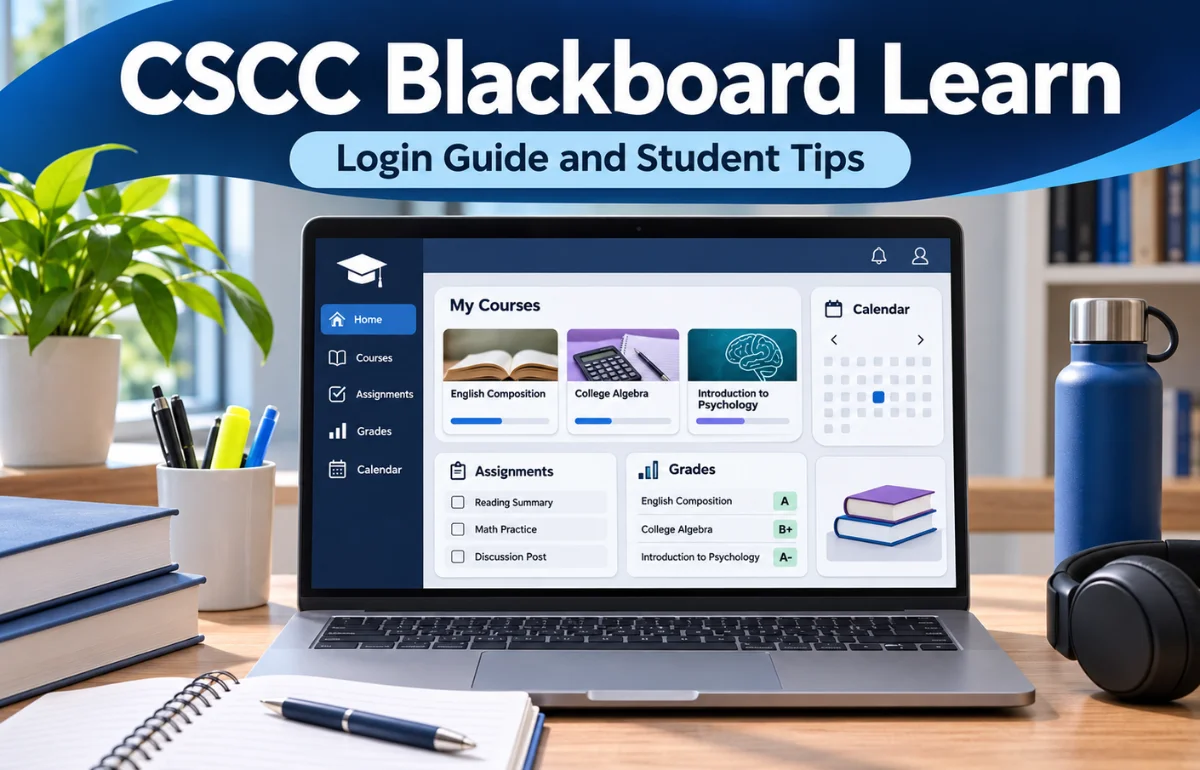
CSCC Blackboard Learn is the official online learning management system (LMS) used by Columbus State Community College in Ohio. It allows students to access course materials, submit assignments, take online quizzes, check grades, participate in discussions, and communicate with instructors from one digital platform.
Students can access CSCC Blackboard Learn at courses.cscc.edu using their Columbus State username and password. The platform supports online, hybrid, and traditional classroom courses, making it an essential part of the college’s learning experience.
As of Autumn 2026, Columbus State uses Blackboard Ultra for its courses, providing a modern interface, improved navigation, and a mobile-friendly learning environment.
In this guide, I’ll explain how Blackboard works, how to access its main features, and how to resolve common problems without unnecessary confusion.
What Is CSCC Blackboard Learn, and How Does It Work?
CSCC Blackboard Learn is more than a website where instructors upload lecture notes. It’s a centralized learning environment that connects students with their coursework throughout the semester.
Every Columbus State course has a Blackboard course space, sometimes called a course shell. Instructors use it to organize syllabi, learning materials, assignments, assessments, and academic announcements.
For students, this means they can find important course information without constantly searching through emails or separate websites.
The platform also supports different learning arrangements. A student attending campus classes might use Blackboard to submit homework, while an online student could complete most course activities through the system.
I find it helpful to think of Blackboard as a digital classroom rather than a simple document-storage platform. Its real value comes from keeping coursework, communication, and academic progress connected.
How to Access CSCC Blackboard Learn
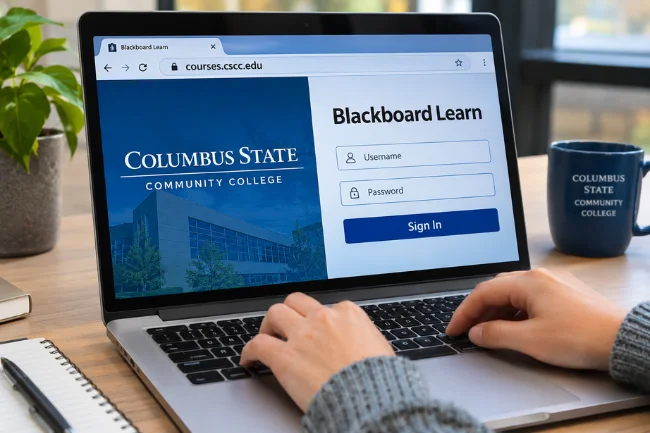
Accessing the CSCC Blackboard login page is straightforward once your Columbus State account is active.
Official CSCC Blackboard Login Instructions
Follow these instructions to access your student dashboard:
- Open your preferred web browser and visit https://courses.cscc.edu.
- Enter your Columbus State username and password when prompted.
- Complete any additional account-verification requirements.
- After signing in, select Courses from the navigation menu.
- Choose the course you want to open.
You can also visit the official Columbus State website and select the Blackboard link near the top of the homepage.
Your Blackboard credentials are the same college account credentials used for services such as Workday and student email.
I recommend bookmarking the official Blackboard address. It saves time and reduces the risk of accidentally visiting an unofficial login website.
What If You Forget Your Blackboard Password?
If you cannot remember your username or password, visit password.cscc.edu.
Columbus State provides a Discover/Activate option that helps eligible users identify their account information and establish or reset their password after identity verification.
Avoid using unrelated password-reset pages. The college specifically directs students to its own account-management service for Blackboard credentials.
If the reset process fails, contact the IT Support Center rather than repeatedly attempting unsuccessful logins.
Why Are My Courses Not Showing in CSCC Blackboard?
One common concern among new students is signing into Blackboard successfully but finding no courses.
Fortunately, a missing course doesn’t automatically mean something is wrong with your account.
According to Columbus State’s official guidance, upcoming courses generally become available in Blackboard four days before their individual start dates.
This distinction matters for students enrolled in shorter sessions. A second eight-week course may appear later than a course starting at the beginning of the semester.
Other Reasons a Course Might Be Missing
Your course might not appear because your registration was recently processed, your enrollment status changed, or your account information hasn’t synchronized yet.
Columbus State explains that newly registered students may need to wait until the following morning for Blackboard access to update.
I recommend checking your registration status in Workday before assuming the problem is technical.
If Workday confirms that you’re enrolled and the course should already be available, contact the college’s IT Support Center.
Blackboard Ultra at Columbus State: What Changed in 2026?
One of the biggest developments affecting CSCC Blackboard Learn is the transition from Blackboard Learn Original Course View to Blackboard Ultra.
Columbus State introduced Ultra gradually during 2025 and expanded its use throughout 2026. According to the college’s August 2026 announcement, all courses use Ultra beginning with Autumn Semester 2026.
The change wasn’t simply cosmetic. Ultra introduced a more consistent course layout, responsive navigation, improved accessibility, and easier access to learning materials.
Blackboard Original vs. Blackboard Ultra
| Feature | Blackboard Original | Blackboard Ultra |
|---|---|---|
| Course interface | Traditional course-menu layout | Modern, streamlined layout |
| Navigation | More dependent on instructor-created menus | More consistent course navigation |
| Mobile experience | Older interface design | Responsive, mobile-friendly design |
| Finding materials | Primarily menu-based browsing | Simplified browsing with course-search capabilities |
| Grades and feedback | Traditional grading interface | Streamlined Gradebook experience |
| CSCC course usage | Previous course format | Standard since Autumn 2026 |
The biggest practical benefit, in my view, is consistency. When courses share a familiar layout, students can spend less time figuring out where things are located.
However, instructors still determine which materials and assessments are available in their individual courses.
Understanding the CSCC Blackboard Ultra Dashboard
After signing in, you’ll encounter a navigation system designed to help you move between courses and learning activities.
Several areas deserve particular attention.
Courses and Course Content
The Courses section displays the classes currently available to your account.
Opening a course gives you access to its learning materials. Depending on your instructor’s setup, these may include weekly modules, lecture slides, readings, assignment instructions, and multimedia resources.
I recommend locating the syllabus before exploring other content.
The syllabus explains course expectations, grading policies, important dates, and instructor contact information. It also helps you understand how individual assignments contribute to your final grade.
Activity Stream and Calendar
The Activity Stream helps students notice recent course activity, while the Calendar can display scheduled assessments and due dates when instructors provide them.
These tools are useful for monitoring several courses without opening each one individually.
However, I wouldn’t rely exclusively on automated reminders. Some learning activities may require attention even when they don’t generate a prominent notification.
Checking the course content and syllabus remains essential.
How to Submit Assignments Through CSCC Blackboard
Submitting coursework is one of the most important features of Blackboard Ultra.
Instructors can create assignments that accept written responses, uploaded documents, or other supported content.
When you open an assignment, Blackboard can display its instructions, deadline, available points, grading rubric, and permitted attempts.
Preparing and Uploading Your Work
Read the complete assignment instructions before uploading anything.
Some instructors require Microsoft Word documents, while others accept PDFs or direct text submissions. Requirements depend on the particular assessment.
When the assignment supports file uploads, attach your document in the submission area and verify that the correct file appears.
Then select Submit and complete any required confirmation.
Columbus State’s assignment submission instructions explain that students should look for a successful-submission confirmation.
Why Submission Confirmation Matters
A saved draft isn’t necessarily a submitted assignment.
This is an easy distinction to overlook, particularly when working close to a deadline.
I recommend treating submission confirmation as the final part of every assignment. Don’t leave the page assuming an uploaded file has automatically reached your instructor.
Also, check your document before submitting. Once an attempt has been submitted, correcting a mistake may require instructor assistance or another permitted attempt.
Taking Online Quizzes and Tests in Blackboard
CSCC Blackboard supports online quizzes, examinations, and other assessments.
Depending on instructor settings, a test may include multiple-choice questions, short answers, essays, matching exercises, or other formats.
Before beginning, review its availability window, time limit, number of attempts, and any required access code.
Avoiding Problems During Timed Assessments
I suggest starting important assessments well before their deadlines whenever possible.
A reliable internet connection, updated browser, and quiet working environment can prevent unnecessary interruptions.
Columbus State advises students not to refresh the page, use the browser’s back button, or close the assessment window while taking a test.
For timed assessments, remember that the countdown may begin as soon as you start the attempt.
If a technical problem occurs, document the issue and contact your instructor promptly. Don’t assume an interrupted exam will automatically receive another attempt.
Checking Grades and Instructor Feedback
Blackboard Ultra includes a Gradebook that helps students monitor their performance during the semester.
To find your grades, sign in and select Grades from the main navigation. You can then open a course’s Gradebook to review available scores.
Depending on instructor settings, you may see points, percentages, letter grades, or assignment statuses.
Understanding Blackboard Gradebook Statuses
Several status labels can help you identify whether coursework requires further attention.
- Unopened: You haven’t opened the assessment.
- Draft saved: You’ve started the activity, but haven’t submitted it.
- Submitted: Your work was submitted and is awaiting grading or further processing.
- Graded: Your instructor has graded the submission.
These labels are more useful than they initially appear.
For example, seeing Draft saved after finishing an assignment indicates that you should verify whether the final submission was completed.
How to Use Feedback to Improve Your Grades
Blackboard can also display instructor comments, grading rubrics, and annotated documents.
Some instructors provide written feedback, while others may attach audio or video comments.
I recommend reviewing feedback even when you’re satisfied with the grade. It can reveal expectations that will apply to future assignments.
Remember that some quiz results or correct answers may remain hidden until an instructor releases them.
Can You Use CSCC Blackboard Learn on a Mobile Phone?
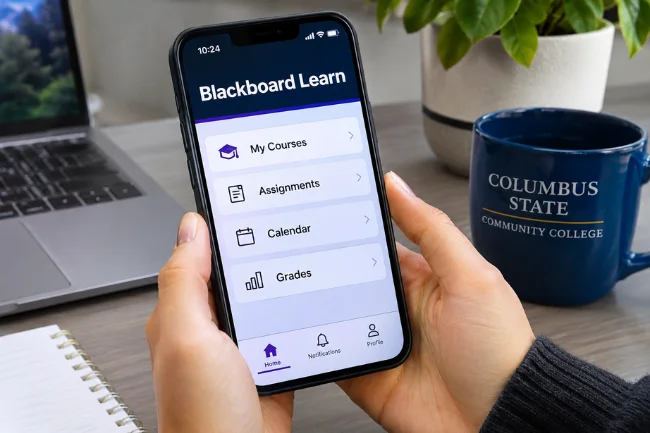
Yes. Columbus State students can access Blackboard through the Blackboard Learn mobile app, available for compatible Android and iOS devices.
The app allows students to review course content, monitor grades, check deadlines, and follow course updates while away from a computer.
Its convenience makes it particularly useful for students balancing classes, employment, and personal commitments.
Limitations of the Blackboard Mobile App
The mobile app doesn’t provide identical functionality for every Blackboard Ultra activity.
According to Columbus State’s mobile-app support documentation, assessment Conversations and Group assessments aren’t supported in the app and require a computer browser.
For this reason, I recommend using the mobile app primarily for checking information and completing supported activities.
For complex submissions, group assessments, and important exams, a computer is generally the safer choice.
CSCC Blackboard vs. Workday: What’s the Difference?
Students sometimes confuse Blackboard with Workday because both platforms are part of Columbus State’s digital services.
However, they have different responsibilities.
Blackboard focuses on learning activities and classroom progress. Workday handles official student administration, including registration and academic records.
Columbus State introduced Workday Student for Autumn 2026 registration and related academic functions.
| Platform | Primary purpose | Common student activities |
|---|---|---|
| Blackboard Ultra | Learning management | Access lessons, submit assignments, review coursework grades |
| Workday Student | Academic administration | Register for courses, review schedules, access official academic information |
| Student email | College communication | Receive institutional notices and exchange messages |
An important distinction involves grades.
The Blackboard Gradebook helps you understand performance within a course, but official final course grades are handled through the college’s student information system.
I recommend using Blackboard to monitor your ongoing coursework and Workday to verify official academic records.
Other Learning Tools Connected With Blackboard
Blackboard serves as a central access point for several educational tools that support different learning activities.
Discussions and Collaboration
Online discussion boards allow students to exchange ideas, respond to classmates, and participate in instructor-directed conversations.
A useful discussion post goes beyond repeating information. I suggest referencing course material, explaining your reasoning, and contributing something relevant to the conversation.
Video and Tutoring Resources
Columbus State identifies Kaltura as a tool for uploading, storing, and sharing course-related videos.
The college also provides access to NetTutor through Blackboard’s Tools area, giving students additional online tutoring opportunities.
Other resources, including Zoom and Microsoft Teams, may support live classes or collaborative activities.
Availability and instructions depend on the course and instructor.
Accessibility and Learning Support
Blackboard Ultra’s responsive design helps make online coursework accessible across different screen sizes.
However, accessibility involves more than adjusting to a smartphone or tablet.
Students may need adapted learning materials, testing accommodations, accessible documents, or assistance with course technology.
Columbus State’s Department of Accessibility & Testing supports eligible students with academic accommodations and related services.
I recommend contacting the department early if accessibility barriers interfere with coursework.
Resolving those concerns before major assessments is generally easier than trying to address them during an exam.
Students can review the college’s Academic Tools and Accessibility Services information for guidance.
Common CSCC Blackboard Problems and How to Fix Them
Even a well-designed learning platform occasionally creates technical frustration.
Knowing how to distinguish an account issue from a course issue can save considerable time.
Blackboard Login Page Won’t Load
First, check your internet connection and confirm that you’re visiting the official website.
If Blackboard shows an HTTP 400 error or a message about oversized request headers, accumulated browser cookies may be responsible.
Columbus State recommends trying a private browsing window, switching browsers, or clearing cookies for the Blackboard website.
An outdated browser can also cause problems. The college supports current versions of major browsers, including Chrome, Firefox, Edge, and Safari.
Assignments or Content Are Missing
If an assignment isn’t visible, check the relevant learning module and its availability dates.
Some instructors use release conditions that make materials accessible only after specific requirements are met.
If classmates can access an activity but you cannot, contact your instructor with the course name and a description of the issue.
Blackboard Works, but Something Looks Incorrect
An unexpected display problem doesn’t always indicate a platform outage.
Try reopening the course in a supported browser and checking whether the problem affects one activity or the entire platform.
I recommend avoiding repeated submissions while troubleshooting. Instead, verify the activity’s existing status before attempting further action.
How I Recommend Organizing Coursework in Blackboard
The most effective way to use CSCC Blackboard Learn is to develop a consistent academic routine.
Students don’t necessarily need complicated productivity applications. A simple schedule built around Blackboard can prevent missed deadlines and forgotten tasks.
Start Each Week With a Course Review
At the beginning of the week, I recommend opening every active course and recording upcoming deadlines in one calendar.
Check announcements, new content, quizzes, and assignments rather than relying on memory.
Compare the Blackboard calendar with your syllabus because not every course requirement will necessarily appear as an automatic reminder.
Use a Three-Check Routine
My preferred approach is to organize Blackboard activity around three checkpoints.
The first is a planning check: identify what needs to be completed.
The second is a progress check: confirm that assignments and readings are moving forward.
The third is a submission check: verify that completed work has actually been submitted.
This method separates knowing about a deadline from completing the work required to meet it.
Keep Your Academic Files Organized
Create separate folders for your courses and use descriptive filenames for assignments.
For instance, including the course identifier and assignment title makes documents easier to recognize.
Keep copies of submitted coursework and important feedback for future reference.
This is especially useful when a course closes or previously available learning materials are no longer accessible.
Where to Get Official CSCC Blackboard Support
Columbus State provides technical assistance, training resources, and student orientations for Blackboard users.
Students can contact the IT Support Center using the following official details:
- Phone: 614-287-5050
- Email: helpdesk@cscc.edu
- IT support website: cscc.edu/ithelp
The college also offers self-paced Blackboard orientation resources and short instructional videos covering navigation, assignments, assessments, and grades.
For problems involving assignment instructions, assessment access, or course-specific requirements, your instructor is generally the appropriate first contact.
For login failures, browser errors, and account-access issues, I recommend contacting IT support.
Frequently Asked Questions About CSCC Blackboard Learn
1. What is CSCC Blackboard Learn used for?
CSCC Blackboard Learn allows Columbus State students to access course materials, submit assignments, complete assessments, participate in discussions, and check grades online.
2. What is the official CSCC Blackboard login website?
The official login address is https://courses.cscc.edu. Students sign in using their Columbus State account credentials.
3. Why are my classes not showing in CSCC Blackboard?
Courses generally become available four days before their start dates. Recent registration changes or enrollment issues may also delay access.
4. Does Columbus State Community College use Blackboard Ultra?
Yes. Columbus State transitioned all courses to Blackboard Ultra beginning with Autumn Semester 2026.
5. Can I use CSCC Blackboard on my phone?
Yes. The Blackboard Learn app supports many common learning activities, although certain group assessments and assessment conversations require a computer browser.
Final Thoughts
CSCC Blackboard Learn brings essential learning activities together, helping Columbus State students manage coursework, follow announcements, submit assignments, and monitor academic progress.
With Blackboard Ultra now serving as the college’s standard course interface, understanding its navigation and submission features is especially useful.
My recommendation is simple: bookmark the official Blackboard login page, explore your courses as soon as they’re available, and establish a consistent routine for checking deadlines and confirming submissions.
A few minutes of regular organization can make the entire semester easier to manage.

Noah Sterling is a technology research writer with 8+ years of experience covering emerging technologies, software trends, digital tools, and innovation. He creates practical, research-based articles to help readers understand the evolving technology landscape.