How to Spot a Phishing Email begins with three checks: who really sent the message, what it wants you to do, and whether you can confirm its claim outside your inbox. A phishing email is a fraudulent message designed to trick you into revealing passwords, sharing financial information, sending money, or opening harmful links and attachments. It often pretends to come from a trusted company, colleague, or service.
I never judge an email by its logo or professional appearance alone. Instead, I compare the sender’s address, the request, and the destination of any link with what I already know. Urgent threats, unexpected login requests, strange web addresses, and last-minute payment changes are warning signs.
A single clue may not prove fraud, but an unusual request is always worth verifying through an official website or a phone number you obtained independently.
What Is Phishing, and Why Is It Harder to Recognize Now?
Phishing is a form of social engineering: an attacker tries to influence your decisions rather than defeat a security system directly. An email might claim your account is locked, a package cannot be delivered, or an invoice needs immediate approval.
The real goal is to make you act before checking the facts.
Today’s phishing messages are not necessarily full of spelling mistakes. They can be polished, personalized, and timed around genuine activities. Some even arrive from compromised accounts belonging to people you know.
That’s why I focus on the behavior an email demands, not simply how convincing it looks.
11 Warning Signs of a Phishing Email
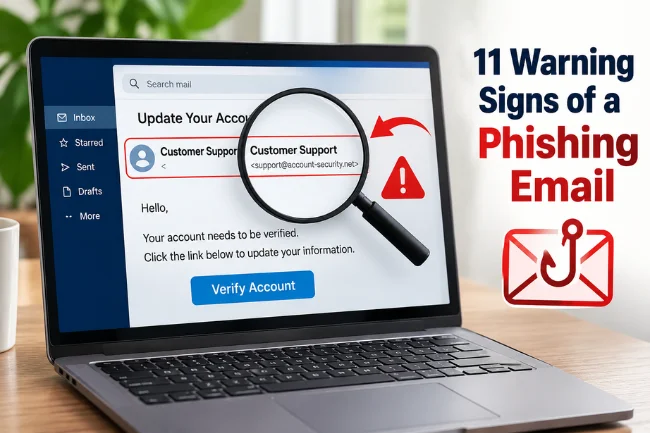
1. The Display Name and Actual Sender Address Disagree
Your inbox might show “Customer Support,” while the underlying address belongs to an unrelated domain. Open the sender details rather than trusting the name displayed in large type. I check the full address, not just its beginning.
A familiar contact name proves little: attackers can imitate it or compromise a real account. If the request seems unusual for that person, verify it another way.
2. The Domain Resembles a Real Brand but Isn’t the Same
Lookalike domains use extra words, swapped letters, or deceptive subdomains. For example, accounts.example.com belongs to the example.com domain, while example.com.account-check.test belongs to account-check.test.
The trusted-looking brand at the beginning doesn’t make the second address legitimate.
I read domain names from right to left, identifying the actual registered domain before any path or query. Unfamiliar domains may still require further verification.
3. The Message Creates an Artificial Deadline
“Your account will close in 30 minutes” and “Payment required today” are designed to shorten your thinking time. Real organizations sometimes send urgent notices, so urgency alone doesn’t establish a scam.
I check whether the deadline appears in my real account. If an email demands immediate secrecy or discourages verification, I treat that pressure as a serious red flag.
4. It Requests Passwords, Verification Codes, or Recovery Details
An email asking you to reply with a password, PIN, one-time code, or account recovery phrase deserves immediate suspicion. Phishing pages may also ask for this information after you click a seemingly normal “Verify account” button.
I open the service directly instead of using an emailed link. Even if the sender seems authentic, a request to share a sign-in code with another person should be rejected.
5. The Link Text Hides a Different Destination
A button labeled “View secure document” can lead somewhere unrelated to the supposed organization.
On a desktop, hovering over the link may reveal its destination without opening it. On a phone, link previews vary by app, and long-pressing isn’t always risk-free.
I don’t visit an unfamiliar site just to investigate it. If I cannot reliably inspect the destination, I open the company’s known website or app separately instead.
HTTPS and the padlock icon indicate an encrypted connection, not that a site is trustworthy.
6. An Unexpected Attachment Asks You to Enable Something
A surprise invoice, résumé, shipping document, or shared file can carry a malicious attachment or send you to a fake sign-in page.
Be especially cautious if opening it requires you to enable macros, install software, turn off security settings, or enter credentials.
Even PDFs and calendar invitations can contain deceptive links. I verify unexpected files with the supposed sender using a separate channel before opening them, particularly at work.
7. The Email Changes Payment Instructions
One of the most costly warning patterns is a message that appears to come from a supplier or manager and announces a new bank account for an existing invoice.
It may be brief, polite, and grammatically perfect, with no suspicious link.
This can be business email compromise (BEC). The FBI’s Internet Crime Complaint Center recommends confirming account changes through a secondary channel.
I would call a number already on file, never the new number supplied in the email.
8. The Greeting or Context Doesn’t Fit the Relationship
A generic greeting can be suspicious in a sensitive account notice, but legitimate mass emails use generic greetings too.
More revealing is a mismatch with the actual relationship: an invoice for a service you never purchased, a job offer you never applied for, or a security alert about an account you don’t have.
I ask, “Does this event make sense for me right now?” Context is often more useful than grammar or formatting.
9. The Reply-To Address Doesn’t Match the Claimed Sender
Some messages display one address in the From field but direct replies to a different mailbox.
That may have legitimate business reasons, yet an unexplained mismatch is worth checking when the email requests money or confidential information.
Expand the sender details, including Reply-To when available. I don’t reply to test whether the sender is genuine; that can confirm my address is active and keeps the conversation inside the attacker’s chosen channel.
10. A QR Code Replaces the Usual Link
A message might say, “Scan to restore access” and display a QR code inside the email or a PDF.
This tactic, sometimes called quishing, moves you from the email to a website on your phone, where the destination can be harder to assess.
Microsoft’s phishing techniques guidance describes this approach.
I treat an unexpected login QR code like any unknown link: I don’t scan it to see where it goes.
11. The Email Asks You to Approve an Unexpected Security Action
Watch for instructions to approve a sign-in notification, share a multi-factor authentication code, connect a third-party app, or grant access to your files.
A message may even say that refusing the request will disable your account.
A genuine-looking sign-in page doesn’t make the request safe. If I didn’t initiate the action, I decline the prompt and check my account’s security activity through its normal settings.
Legitimate Email vs. Phishing Email: What’s Different?
No single sign produces a perfect verdict. I use this comparison to decide when an email needs closer inspection rather than to declare every unusual message fraudulent.
| What to Check | More Consistent With a Legitimate Message | Reason to Suspect Phishing |
|---|---|---|
| Sender | Expected address and recognizable domain | Lookalike or unexplained address |
| Purpose | Matches an activity you initiated | Refers to an unfamiliar order or account |
| Link | Leads to an expected service domain | Redirects to an unrelated sign-in page |
| Request | Can be confirmed in your account | Demands codes, secrecy, or urgent payment |
| Attachment | Expected file from a verified contact | Surprise file requesting macros or login |
| Payment | Agrees with previously verified details | Abrupt change in recipient or bank account |
The key difference is consistency. A credible email aligns its identity, context, and requested action. A phishing email often breaks that chain, even when its design looks flawless.
How to Spot a Phishing Email Without Clicking Suspicious Links
Start With a Simple Three-Part Check
My first questions are: Did I expect this message? Does the sender match the relationship? Can I complete the supposed task without touching the email?
A delivery notice, for example, can be checked in the courier’s official app using a tracking number from the original purchase.
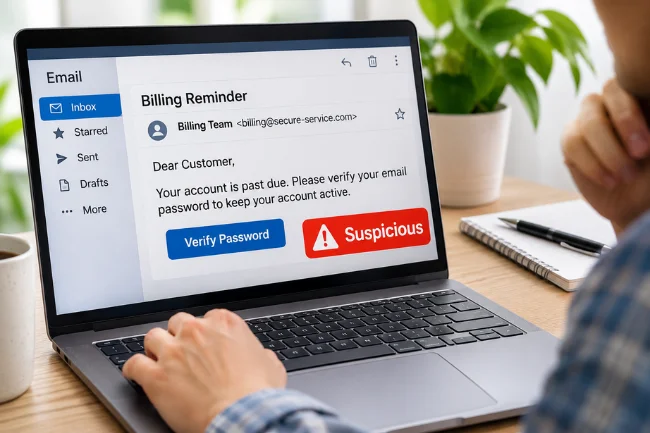
I also look for what I call an action mismatch: the email describes one issue but pushes an unrelated action.
A billing reminder that demands an email password is a good example. The mismatch matters more than how convincing the message sounds.
Go to the Source Independently
Instead of clicking the email’s button, I type a known website address or use a saved bookmark or official app.
For a message from a colleague, I call or message them through a contact method I used before. I avoid contact details supplied only in that email.
If the organization confirms the event, I use its official channel. Otherwise, I report the message.
Use Authentication Details as Supporting Evidence
In Gmail, expanding sender information can show “mailed by” and “signed by” domains.
These reflect email authentication mechanisms such as SPF and DKIM. They help detect impersonation but cannot prove safety: attackers can authenticate domains they control.
Google’s authentication guidance also explains that legitimate mail occasionally fails authentication.
I therefore treat technical indicators as supporting evidence, never as a substitute for checking the request itself.
Give Financial Requests a Second Approval Path
For money transfers, I recommend a stricter rule: any change to payment details must be confirmed using pre-existing contact information, even if the email appears to come from a familiar thread.
If possible, have a second person review high-value transactions.
That safeguard also helps when a genuine account has been compromised.
Example: A Fake Delivery Email That Looks Ordinary
Imagine receiving this message:
Subject: Delivery on hold — address confirmation required
From: Parcel Desk (notice@parcel-review.example)
Message: “We couldn’t deliver your package. Confirm your address and pay a small handling fee to avoid return.”
At first, the wording seems plausible.
But I would check whether I’m actually awaiting a parcel, whether the sender belongs to the courier, and whether the tracking information appears in the official shipping app.
The demand for a small payment is not proof of fraud by itself; it is a reason to verify.
The .example domain above is a reserved illustrative domain, not a real delivery service. I would inspect my original order and contact the courier independently.
Why Polished Emails and Familiar Threads Can Still Be Dangerous
Spelling mistakes used to be an easy clue. They are now less dependable because attackers can produce fluent messages and copy authentic layouts.
A polished email is merely well-written; it isn’t verified.
Another trap is conversation history. A compromised mailbox may allow a criminal to reply within an existing email thread, making a forged invoice or document request feel routine.
I pay particular attention when an otherwise normal conversation suddenly changes bank details, asks for a password, or moves to a new website.
That is the distinction I want readers to remember: trust the independently confirmed action, not the apparent familiarity of the messenger.
What to Do If You Already Clicked a Phishing Link
First, identify what happened. Merely opening a suspicious email is not the same as submitting a password or installing software.
If you opened a page but entered nothing, close it, avoid further interaction, and make sure your browser and device are updated.
If a file was downloaded or run, use reputable security software to scan the device and seek IT help where appropriate.
If you entered a password, change it immediately through the real website or app, starting with that account and any others where the password was reused.
Sign out of unfamiliar sessions where the service permits, review recovery details and forwarding rules, and enable multi-factor authentication.
Passkeys or security keys offer stronger protection against many credential-phishing attacks than one-time codes.
If you shared a verification code or approved an unexpected sign-in, contact the service’s security or support team promptly.
If you provided card or bank details, contact your financial institution using its verified number and ask about protective action.
For a work account, inform your IT or security team immediately; don’t wait until you notice damage.
How to Report a Phishing Email
In Gmail on a computer, open the message menu and choose Report phishing. In supported versions of Outlook, use Report > Report phishing.
Reporting helps providers identify similar attempts, and your workplace may have its own reporting button or security address.
The Federal Trade Commission also advises forwarding phishing emails to reportphishing@apwg.org and reporting scams at ReportFraud.ftc.gov.
These channels are US-focused; elsewhere, use your national cybercrime reporting service.
Once reported, delete the message. Don’t test its links or use its unsubscribe button.
Build an Email Habit That Works When You’re Busy
I use a rule that doesn’t depend on remembering dozens of scam examples: pause whenever an email asks me to sign in, pay, download, approve, or share.
Those five actions are common turning points where a harmless-looking message can become an account or financial risk.
A password manager can also help by offering saved credentials only on matching websites, although it is not a complete phishing detector.
Keep your software updated, turn on multi-factor authentication, and use passkeys when supported.
Most importantly, make independent verification routine for unexpected or high-stakes requests.
Frequently Asked Questions
Can a phishing email come from someone I know?
Yes. Attackers can spoof a familiar name or take over a real account. Verify unusual requests using another contact method.
Can I get hacked just by opening a phishing email?
Usually, the greater risk comes from clicking, downloading, or sharing information, but software vulnerabilities can create exceptions. Keep your apps updated.
How can I check a suspicious email link without clicking it?
On a desktop, hover to preview the destination. If the address is unclear, skip the link and visit the service directly.
Are phishing emails always full of spelling mistakes?
No. Many are polished and personalized. Check the sender, context, destination, and requested action instead of relying on grammar.
What should I do with a phishing email after reporting it?
Delete it, avoid replying or clicking anything inside it, and tell your organization’s security team if the message targeted work.
Final Thoughts
Learning how to spot a phishing email is less about memorizing tricks and more about forming one reliable habit: independently verify unexpected requests before taking action.
I check the sender, question the urgency, and use a known website or contact method to confirm the claim.
The next time an email pushes you to act immediately, make verification your first move.

Noah Sterling is a technology research writer with 8+ years of experience covering emerging technologies, software trends, digital tools, and innovation. He creates practical, research-based articles to help readers understand the evolving technology landscape.