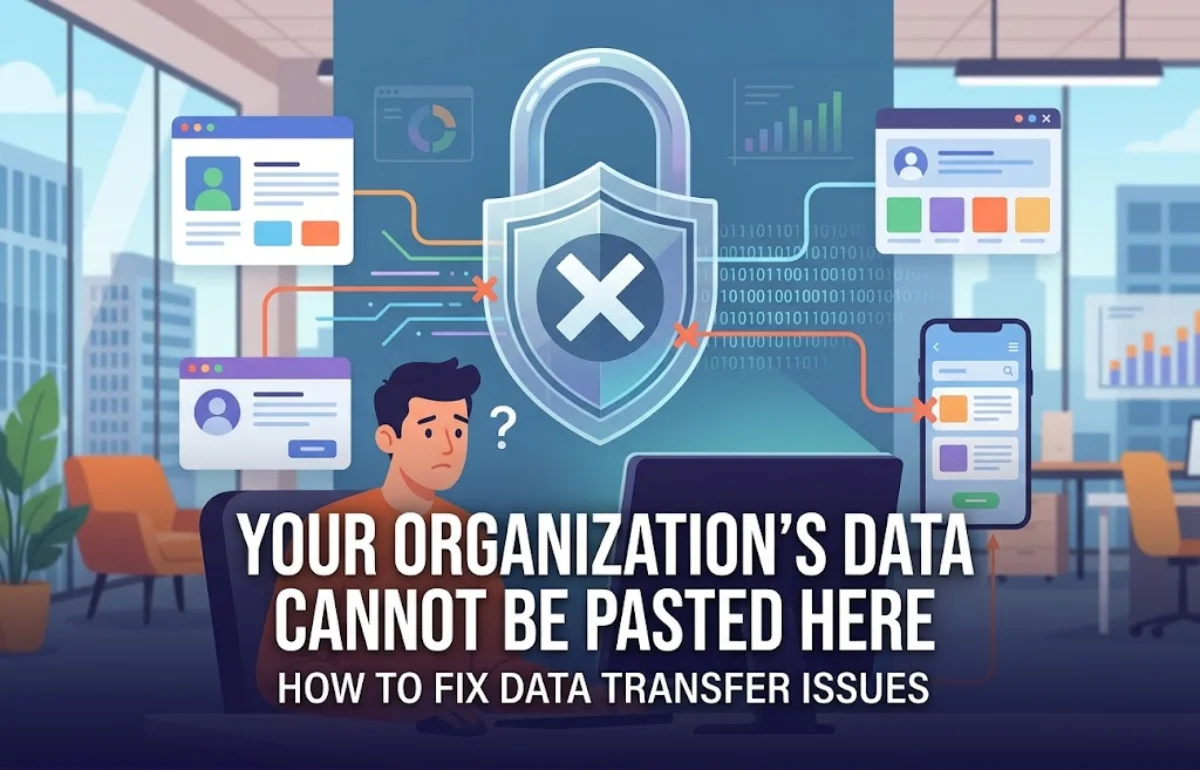
“Your Organization’s Data Cannot Be Pasted Here” is a security message that usually means your workplace’s data-protection policy is preventing copied work content from reaching a particular app, account, or location. It commonly appears with Microsoft Intune app protection policies when information moves outside an approved work environment.
For example, copying from your company’s Outlook account into a personal notes app may be blocked, while pasting into an approved work document may be allowed. The restriction helps prevent company information from leaking through the clipboard. Microsoft’s clipboard troubleshooting documentation explains these managed and unmanaged transfer scenarios.
I recommend checking the destination and work account first. If the transfer is intentionally restricted, IT must approve a suitable route. If it should be allowed, the checks below can help identify what is failing.
Why Your Organization’s Data Cannot Be Pasted Here Appears
The clipboard makes moving information easy, but employers need control over where work information goes. An app protection policy can restrict copying even when the text looks harmless to you.
The restriction may follow the work account and protected content rather than apply equally to everything on the device. That helps explain why personal text might paste successfully while a sentence from a company email does not.
Work apps and personal apps have different permissions
An application being installed does not automatically make it an approved destination. The account you are using and the organization’s configuration also matter.
Consider Outlook and Word on the same phone. Both are Microsoft products, but I would still check which account is active in Word and where the destination document is stored. Matching brand names alone cannot confirm that a transfer is permitted.
Personal devices can receive work protections
You do not necessarily need a company-owned or fully enrolled phone to encounter this message. Microsoft supports mobile application management without device enrollment, allowing organizations to protect work data within supported apps.
Consequently, buying the phone yourself does not remove the rules associated with your work account. Microsoft’s explanation of MAM without enrollment describes this arrangement.
Identify the Pattern Before Changing Settings
I would begin by recording three details: where the text came from, where you tried to paste it, and the complete message. Those details make troubleshooting more focused than repeatedly restarting your device.
Use this table as an initial diagnostic aid. The patterns suggest what to investigate; they do not prove the cause.
| What happens | Possible explanation | First check |
|---|---|---|
| Work text fails in a personal app | Destination restriction | Use an approved work destination |
| Two work apps cannot exchange text | Policy, account, or document-context issue | Confirm accounts and storage location |
| Short text works; longer text fails | Configured character allowance | Record the stated limit |
| Android keyboard preview shows the warning | Keyboard cannot interpret protected clipboard content | Try the destination field’s Paste command |
| Only one document refuses changes | Document-specific editing issue | Test another editable work document |
| Ordinary personal text also fails everywhere | Broader clipboard or application problem | Troubleshoot the affected apps separately |
Use a non-sensitive test sentence when comparing results. Keep the destination constant initially, then change one condition at a time. Otherwise, a successful second attempt may leave you unsure what actually made the difference.
Checks You Can Make Without Administrator Access
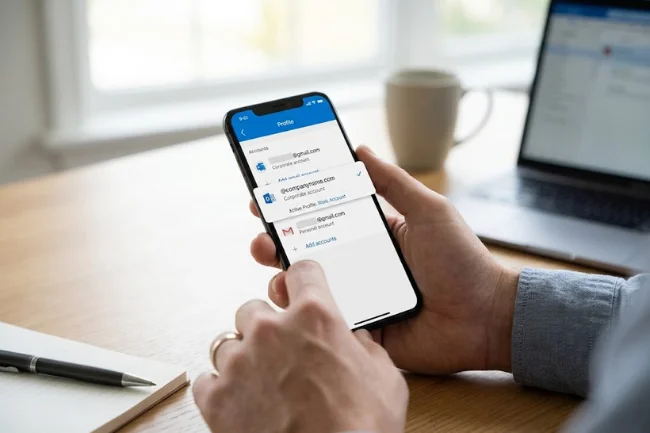
Confirm the destination account
Open the destination app and check its account or profile menu. Make sure you are working under the intended company account, especially if the app also contains a personal account.
Ask a precise question: “Am I pasting into my work environment, or merely into an app I also use for work?” That distinction is easy to miss on a small screen.
If you are unsure which app your organization approves, check its internal instructions or ask support. Downloading another Microsoft app is not, by itself, a policy change.
Open the document from an approved work location
For Office mobile apps, check the document’s location as well as its name. Microsoft specifically recommends a managed destination such as OneDrive for Business or SharePoint Online when investigating failed transfers between managed apps.
A newly created, unsaved document is a special case: Microsoft states that app protection policies do not apply to unsaved new documents. I would therefore test with an existing editable work document rather than assume any blank file is suitable. Microsoft’s managed-document guidance explains this distinction.
Update and reopen the affected apps
Install available updates through your organization’s approved update method. Include both the source and destination applications, then save your work, close them, and reopen them.
Treat this as an application-health check. An update may address software problems, but it does not give you permission to paste into a destination your employer has blocked.
Check connectivity and sign-in prompts
Make sure the device has a working connection and complete any legitimate work-account authentication prompts. Record whether the problem began after a password change, app update, or account switch.
If support recommends signing out, confirm that your work is saved and that you can sign back in. Removing an account or reinstalling an application should not be your first experiment when unsynced work may be involved.
Fixes for Android, iPhone, and iPad
Android: distinguish a keyboard preview from a failed paste
On Android, the warning can appear in a third-party keyboard’s clipboard preview because the keyboard cannot decrypt protected clipboard content. That preview does not always mean an authorized paste inside a managed app will fail.
Tap and hold inside the approved destination’s text field, then select its Paste command. If it works, the preview was the confusing part; you have not overridden a security policy.
Microsoft documents this behavior in its Android app protection settings. If the actual paste still fails, return to the account, destination, and policy checks.
Keep Company Portal installed and updated when your organization requires it. Microsoft identifies it as a requirement for receiving Android app protection policies. Removing it is not a clipboard repair. Microsoft deployment guidance covers the prerequisites.
iPhone and iPad: check the work context
On iOS and iPadOS, start with the signed-in account and the destination document. Update the affected apps through the approved channel and follow any work-access prompts.
If you see a separate iOS paste-permission prompt, distinguish that from the organization’s restriction. Permission to attempt a paste does not establish that company policy allows the content to move.
Microsoft documents clipboard controls separately from other transfer and access settings in its iOS/iPadOS policy reference. I would give IT the exact message rather than describe every interruption as the same paste error.
What to Check on Windows and Mac
Desktop troubleshooting needs more context than a universal instruction to edit Intune settings. Record whether you are using installed Outlook or Office, a browser-based application, or a remote work session.
For Windows, Microsoft documents MAM protection through Edge on supported personal, unmanaged devices. Its Windows clipboard settings use organization-context controls and different labels from the mobile settings.
When I compared Microsoft’s Windows and mobile references, this distinction stood out: instructions written for a phone should not be copied directly into a desktop troubleshooting section. Microsoft’s Windows policy reference explains the applicable environment.
On a Mac, describe the exact app, account, browser, and destination to support. I would not assume that an iPhone’s policy menu also exists in macOS.
For either desktop platform, check whether you can type into the destination. If the document refuses all editing, investigate its editing permissions before treating every failed paste as an Intune clipboard issue.
Why the Message Sometimes Includes a Character Limit
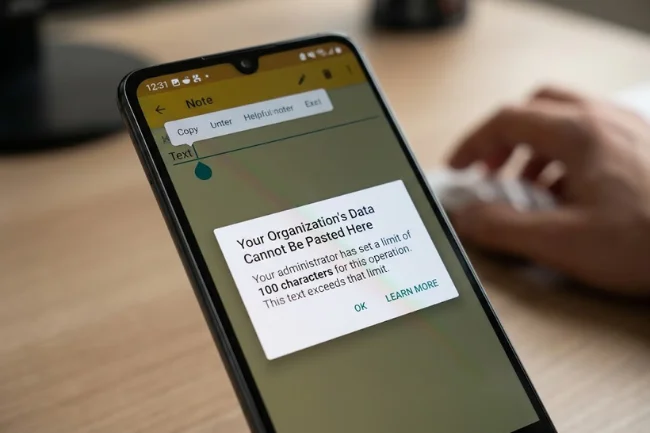
Some versions of Your Organization’s Data Cannot Be Pasted Here include a permitted character count. The number is a useful clue: an administrator can configure a limited allowance for copying organizational text to otherwise restricted destinations.
For example, a short reference number might fit within the allowance while the surrounding email paragraph exceeds it. That does not automatically mean the app or clipboard is broken.
Microsoft documents this character allowance in its Android policy settings. The value is configurable; there is no universal limit that applies to every workplace.
Write down the number shown and the business task you were attempting. If the required content exceeds the allowance, ask for an approved sharing method. Dividing a protected document into repeated small pastes does not resolve whether sharing that document is authorized.
What IT Administrators Should Review
Compare the intended transfer directions
For Android and iOS/iPadOS app protection, clipboard rules can allow incoming personal content while restricting outgoing work content. That asymmetry explains why reversing a copy-and-paste operation can produce a different result.
The following comparison describes the core clipboard setting, before character allowances or other applicable controls are considered.
| Mobile clipboard setting | Managed to managed | Managed to unmanaged | Unmanaged to managed |
|---|---|---|---|
| Blocked | Blocked | Blocked | Blocked |
| Policy managed apps | Allowed | Blocked | Blocked |
| Policy managed with paste in | Allowed | Blocked | Allowed |
| Any app | Allowed | Allowed | Allowed |
Microsoft lists these options in its mobile clipboard policy documentation. “Allowed” here describes this particular setting, not a guarantee that every document and account combination will work.
I recommend confirming the required business transfer before changing the rule. A team that needs to exchange content between approved work apps does not necessarily need unrestricted clipboard access.
Verify targeting and the effective policy
Review the affected user, app assignments, work identity, and reported policy status. Confirm that the expected protection applies to both applications involved in the transfer.
In the Intune admin center, Microsoft’s documented investigation route includes Apps, Monitor, and App protection status. Review the relevant user’s application and check-in information rather than relying only on the policy’s saved configuration.
The configuration you intended and the policy currently received by the app may differ. Microsoft’s deployment troubleshooting instructions provide the investigation sequence.
Check the correct type of exception
File-transfer exceptions and clipboard restrictions are separate controls. Microsoft explicitly states that adding an app to a data-transfer exception list does not change cut, copy, and paste restrictions.
If a file opens in an app but copied text cannot be pasted there, investigate those operations separately. Microsoft’s data-transfer exception documentation clarifies the difference.
How Long Do Policy Changes Take?
There is no single countdown that reliably covers every user and application. App registration, connectivity, service check-ins, and active app use can influence when protection settings arrive.
Microsoft’s policy-delivery timing reference describes different retry conditions. Its deployment troubleshooting guidance also notes that existing policy changes for signed-in users may take up to eight hours to appear.
After an approved change, record when it was saved and follow IT’s refresh instructions. Retest the same source and destination. A different document or personal account can make an unchanged restriction look as though it has disappeared.
Advice I Would Avoid Treating as a Universal Fix
Changing security settings before identifying the restriction creates extra variables. I would be cautious about advice to disable Protected View, remove work management, or repeatedly reinstall applications without a clear diagnosis.
Likewise, moving into a browser does not establish that clipboard access is permitted. Microsoft’s Windows MAM documentation explicitly includes browser-based organizational protection through Edge.
Screenshots and manual retyping are also poor diagnostic tests for clipboard policy: they change how information is transferred. Ask for an approved destination or sharing process when the original action is intentionally restricted.
The useful question is whether the intended transfer should succeed. Once that is established, troubleshooting has a clear target.
Give IT a Report They Can Act On
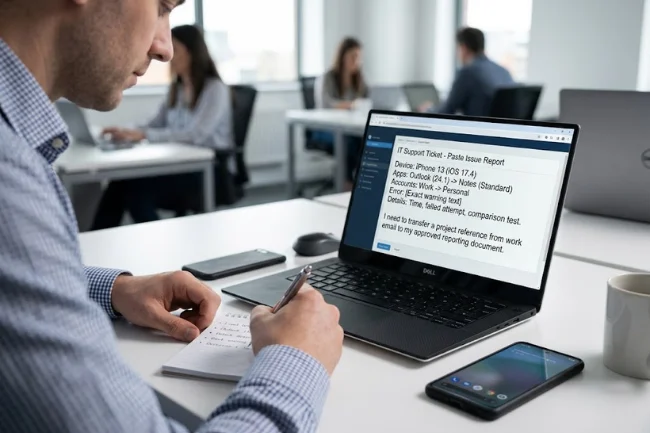
If Your Organization’s Data Cannot Be Pasted Here persists, send support a concise description with:
- Device type and operating-system version.
- Source and destination app names and versions.
- Whether each app is using a work or personal account.
- Destination document location, where relevant.
- Exact warning, including any character allowance.
- Time of the failed attempt and checks already completed.
I would include one comparison result, such as whether the same non-sensitive test text works in another approved work document. This gives support a useful boundary to investigate.
Describe the business outcome you need, too. “I need to transfer a project reference from work email into our approved reporting document” is more actionable than asking to remove every clipboard restriction.
Get Back to Work With the Right Fix
Start with the destination, account, and exact message. Then use the checks relevant to your device and document. If company policy intentionally blocks the transfer, request an approved route; if an approved transfer fails, send IT the evidence above. That gives you a practical next action without guessing which setting to change.
Frequently Asked Questions
What does Your Organization’s Data Cannot Be Pasted Here mean?
It usually means organizational data-protection rules prevent copied work content from reaching the selected app, account, or location.
Can I fix this error without administrator access?
You can check accounts, approved destinations, and app updates. Only authorized administrators can change the organizational policy itself.
Why does the error appear on my personal phone?
Your work account can receive app-level protection even when you own the phone and it is not enrolled in full device management.
Why can I paste only a limited number of characters?
Your organization may allow a small amount of text through a configurable character exception. Ask IT about the limit shown in your message.
Why does copying from Outlook to Word still fail?
Check the destination’s work account, managed document location, and applicable policy. Having both Microsoft apps installed does not guarantee permission.

Noah Sterling is a technology research writer with 8+ years of experience covering emerging technologies, software trends, digital tools, and innovation. He creates practical, research-based articles to help readers understand the evolving technology landscape.