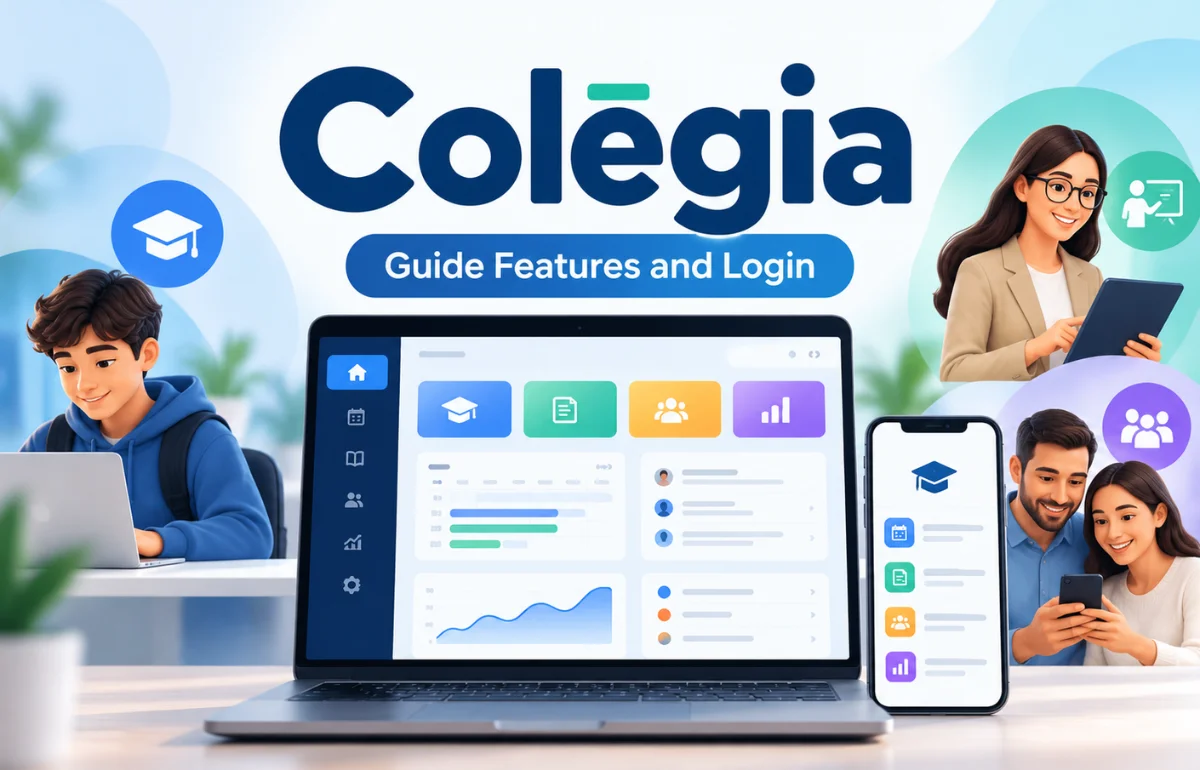
Colēgia is a digital education platform that brings students, teachers, parents, and school administrators together in one online learning environment. Known as a Digital Education Operating System (dēOS), it provides centralized access to educational applications, virtual classrooms, assignments, school announcements, and communication tools.
Instead of switching between several websites to manage schoolwork, users can access many essential resources through a single dashboard.
Colēgia supports traditional classroom instruction, remote learning, and hybrid education. It also helps parents stay informed about their children’s academic progress.
But how does the platform actually work, and what makes it different from other educational tools? I’ll explain its features, login process, benefits, and limitations, along with practical ways to use it effectively.
What Is Colēgia?
Colēgia is an online educational ecosystem designed to simplify how schools deliver digital learning resources and manage communication.
Developed by Colegia LLC and associated with Academica’s educational network, the platform connects different learning tools through a central interface.
Its official website, colegia.org, describes it as a system that helps educational communities connect, cooperate, and collaborate.
The main idea is straightforward: students shouldn’t need to search through multiple websites every morning just to find their lessons.
For example, a student might need Google Classroom for assignments, i-Ready for academic practice, and a separate school system for grades.
Colēgia can bring access to these resources into one organized dashboard, depending on the school’s configuration.
I think the most useful way to understand Colēgia is to view it as a central entrance to a school’s digital environment rather than simply another classroom application.
How Does Colēgia Work?
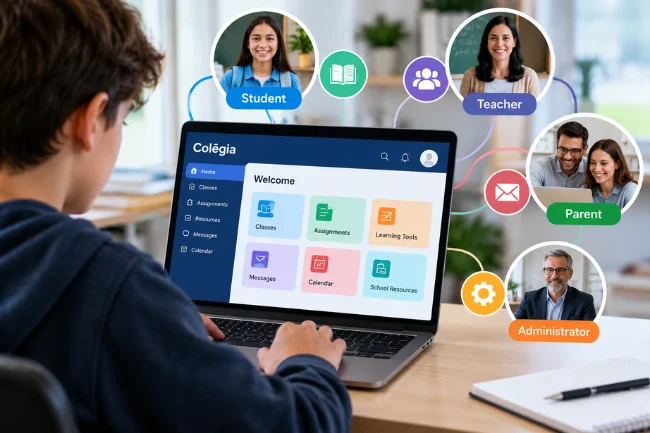
Colēgia works by connecting educational applications, communication services, and school information systems through a common digital platform.
Once a school has implemented the system, authorized users receive access according to their roles.
Students see resources relevant to their classes, while teachers, parents, and administrators have access to different tools and information.
Understanding the Three Main Layers
I find it helpful to divide Colēgia into three functional layers.
The access layer: This manages user identities and helps students reach school-approved applications through their accounts.
The learning layer: This connects users with classroom materials, assignments, educational software, and virtual learning opportunities.
The communication layer: This supports announcements, messaging, school updates, and information sharing between educational stakeholders.
These layers explain why the platform can serve several purposes without necessarily replacing every application a school already uses.
Its usefulness depends partly on which services the school has connected and which permissions each account receives.
Key Features of Colēgia
Colēgia includes several tools designed to make daily academic activities more manageable.
Here are the features I consider most relevant to students, teachers, and families.
1. Centralized Educational Dashboard
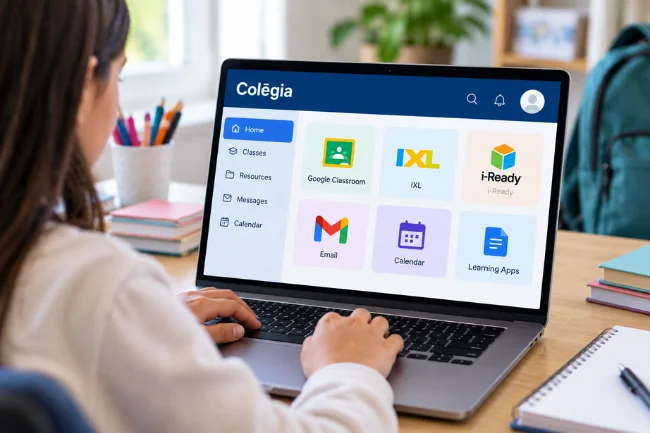
The dashboard provides a central location for accessing school-related applications and information.
Instead of remembering different website addresses, students can open their assigned resources from one place.
Depending on their school, these may include Google Classroom, IXL, i-Ready, email, calendars, and other learning applications.
A centralized interface can also make it easier for younger students to develop consistent study routines.
However, not every school provides the same dashboard layout or selection of applications.
2. Single Sign-On Access
One of Colēgia’s most useful capabilities is single sign-on, commonly called SSO.
This authentication approach allows users to access connected services through a central identity system.
It reduces the need to repeatedly enter different usernames and passwords, although some third-party applications may still require additional authentication.
For students managing multiple educational accounts, this can eliminate unnecessary interruptions during the school day.
I see SSO as particularly valuable when students regularly move between classroom assignments, online textbooks, and assessment tools.
3. Virtual Classrooms and Remote Instruction
Colēgia supports remote learning by providing access to virtual classroom environments.
Students can join scheduled online sessions, communicate with teachers, and participate in live instruction where their school has enabled these capabilities.
Academica describes this approach as Remote Live Instruction, or RLI.
It allows schools to connect students with real-time classroom teaching even when they cannot attend physically.
This functionality is useful during temporary school closures, approved remote-learning periods, and certain hybrid education arrangements.
4. Assignments, Grades, and Academic Progress
Academic tracking is another significant part of the platform.
Depending on the school’s integrated systems, students may be able to access assignments, attendance information, gradebooks, and assessment results.
Some supported school environments also provide access to Florida Assessment of Student Thinking (FAST) results and i-Ready performance information.
I would distinguish between information displayed directly within Colēgia and records accessed through a connected school system.
The dashboard may provide access to both, but that does not mean Colēgia independently manages every academic record.
This distinction matters when students notice different update times across applications.
5. Messaging and School Announcements
School communication can become difficult when information is scattered across emails, classroom applications, and printed notices.
Colēgia helps address this problem through communication features such as messaging, group chats, and school announcements.
Students can receive relevant updates, while parents may access school communications through their accounts.
Teachers can also use supported communication channels to share information with their learning communities.
For families, having one familiar place to check school notices can make important messages easier to follow.
Who Can Use Colēgia?
Colēgia supports different user groups, with access determined by school settings and account permissions.
| User Type | Main Purpose | Common Activities |
|---|---|---|
| Students | Access digital learning resources | Open educational apps, attend classes, review assignments |
| Teachers | Support instruction and communication | Share updates, communicate with students, access teaching tools |
| Parents and guardians | Follow children’s education | Review available progress information, messages, and school notices |
| Administrators | Support school operations | Coordinate access, services, and educational communication |
The platform’s biggest strength is not that everyone sees identical information.
It is that different members of a school community can work through connected services while maintaining their individual responsibilities.
That role-based structure is especially useful in schools managing large numbers of students and families.
How to Log In to Colēgia
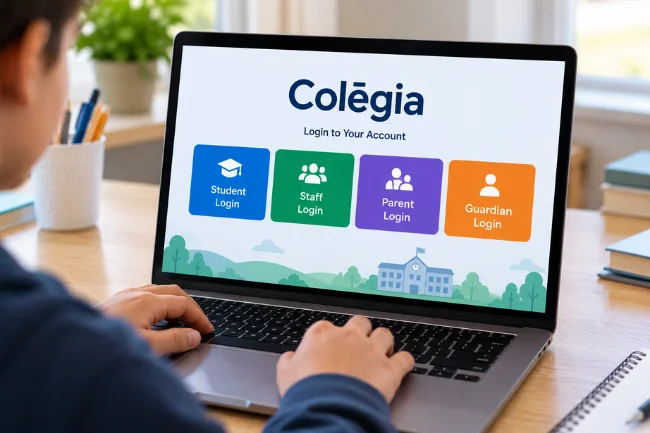
The Colēgia login process depends on whether you’re a student, staff member, parent, or guardian.
The safest starting point is the official Colēgia website.
Colēgia Student and Staff Login
Students and staff can generally access their accounts using the school’s assigned ColēgiaID or approved email credentials.
- Visit www.colegia.org/login.
- Enter your ColēgiaID or school email address.
- Select Continue.
- Complete the authentication process presented on the screen.
- Access your dashboard and available school applications.
Students should use the credentials provided or approved by their educational institution.
If an application is missing after signing in, it may not have been enabled for the student’s account.
How to Find Your ColēgiaID
For students, the ColēgiaID is associated with their school email identity.
The platform provides an official student lookup page to help eligible students locate this information.
The lookup process may request a county and student identification number.
I recommend using this official feature rather than entering school identification details into unofficial websites.
If the lookup does not recognize your information, contact your school’s technology support team to confirm your enrollment details.
Colēgia Parent and Guardian Login
Parents have a separate account experience.
To access it, visit the parent login page.
Existing users can sign in with their registered credentials. The page also presents Google and Apple sign-in options.
New users can choose the registration option and provide the requested account information.
After creating an account, parents may need to link their child’s student profile using the school’s approved verification procedure.
Some schools use a student PIN for this connection.
I suggest contacting the school if the required linking information is unavailable rather than attempting to bypass the verification process.
How Parents Can Monitor Student Progress
The parent portal is particularly useful for families who want to stay involved without constantly requesting updates from teachers.
Depending on school integrations, parents may access grades, attendance information, assessment results, assignments, and school notices.
Some participating schools also provide access to lunch-account services and other administrative resources.
However, these capabilities vary by institution.
A parent should not assume that every school provides identical information or that all records update instantly.
I recommend checking both the parent dashboard and the school’s official communication channels when verifying important academic information.
For example, if a grade appears incorrect, the teacher or relevant school office should be the first point of contact.
The dashboard helps parents view information, but the school remains responsible for confirming official student records.
Is the Colēgia Mobile App Available?
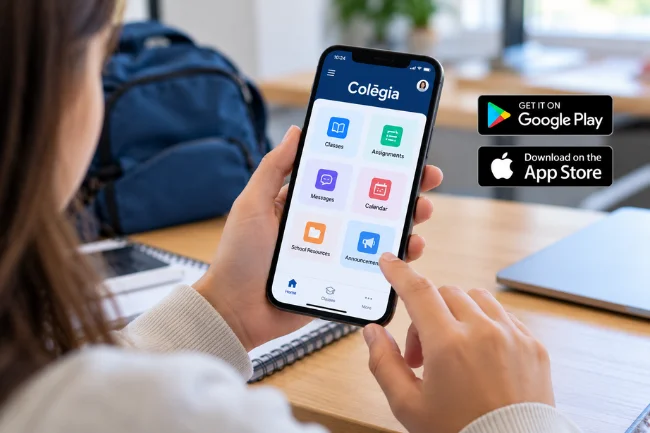
Yes. Colēgia provides mobile applications for Android devices and Apple’s iPhone and iPad.
The app is available through Google Play and the Apple App Store.
The mobile experience supports functions such as school announcements, messaging, access to educational applications, and virtual classroom connections.
It offers an alternative for users who cannot regularly access a desktop computer.
Still, I wouldn’t assume that every third-party educational application works identically on a phone.
Some assignments, documents, and school systems may be easier to navigate in a desktop browser.
For lengthy writing tasks or complex assessments, a laptop or desktop computer may provide a more comfortable experience.
Students should also check that their device and operating system meet the application’s current requirements.
Colēgia vs. Google Classroom: What’s the Difference?
Colēgia and Google Classroom are sometimes mentioned together, but they serve different purposes.
Google Classroom primarily helps teachers organize coursework and communicate about class activities.
Colēgia provides a broader access environment that can connect Google Classroom with other school resources.
| Feature | Colēgia | Google Classroom |
|---|---|---|
| Primary purpose | Centralized educational platform | Classroom and assignment management |
| Single sign-on | Supports connected school applications | Uses Google account authentication |
| Learning applications | Provides access to multiple integrated tools | Connects with supported Google and third-party tools |
| Parent access | Dedicated guardian experience with school-dependent features | Guardian email summaries and supported school features |
| School information | May provide access to grades, attendance, and assessments | Focuses mainly on classwork and classroom information |
| Virtual instruction | Connects users with supported virtual classrooms | Integrates with Google Meet and other supported services |
These platforms are not necessarily competitors.
A school can use Google Classroom for coursework while relying on Colēgia as the central access point.
That relationship explains why students sometimes encounter both platforms during the same school day.
Benefits and Limitations of Colēgia
Like any education technology platform, Colēgia has advantages as well as practical limitations.
Major Benefits
The first benefit is convenience. Centralized access can reduce the time students spend locating educational resources.
Another advantage is coordination. Teachers, administrators, students, and families can access relevant services through a shared environment.
The platform also supports flexible education models, including classroom instruction and certain remote-learning arrangements.
Parent involvement is another potential strength because families can access available school information without depending entirely on printed reports.
Possible Limitations
The experience depends heavily on the school’s configuration.
An application available to one student may not be available to another.
Users may also encounter temporary login problems, synchronization delays, or issues with connected third-party services.
Mobile functionality can vary depending on the device and the particular application being opened.
I would therefore avoid treating Colēgia as a guaranteed replacement for every learning management system, school portal, or communication tool.
It works best when schools clearly explain which tasks belong in each connected application.
Is Colēgia Safe and Secure?
Security is a reasonable concern because educational platforms may process sensitive student information.
According to Colēgia’s privacy policy, the company may receive information such as student identifiers, academic records, attendance details, and assessment results when necessary to provide its services.
The policy discusses protections involving the Family Educational Rights and Privacy Act (FERPA) and the Children’s Online Privacy Protection Act (COPPA).
It also explains that third-party services may process certain information and that no internet-based security system can guarantee absolute protection.
This distinction matters.
A platform’s security statements should not be interpreted as proof that privacy risks are impossible.
I recommend using strong, unique passwords, avoiding shared accounts, and signing out after accessing school information on public devices.
Parents should also review the privacy policies of connected educational applications, not just Colēgia itself.
Common Colēgia Login Problems and How to Fix Them
Even a well-organized platform can occasionally create access difficulties.
The following issues are worth checking before contacting technical support.
Incorrect Username or Password
First, confirm that you’re using the correct ColēgiaID or registered email address.
Check for typing mistakes and ensure that the account belongs to the intended school or user role.
If necessary, use the official password recovery option.
Colēgia also provides a password reset page.
Dashboard Not Loading
A dashboard that fails to load may be affected by browser settings, connectivity problems, or a temporary service issue.
Try refreshing the page, updating your browser, or opening the official website in a private browsing window.
If the problem continues across devices, contact school support.
Missing Educational Applications
If an expected learning application doesn’t appear, verify that you’re signed into the correct student account.
The school may not have assigned the application to your account or may have changed its access settings.
I recommend confirming the application name with your teacher before assuming that the platform is malfunctioning.
Parent Account Not Showing a Student
A parent account may require verification before the child’s information becomes visible.
Check whether the linking process has been completed and whether the school has provided the correct student PIN or other required information.
Never share a student’s PIN publicly or request another family’s credentials.
Notifications or Messages Not Appearing
Check the application’s notification permissions and confirm that your device has a working internet connection.
Opening the web dashboard can help determine whether the issue involves mobile notifications or the underlying message.
For time-sensitive school matters, use the school’s designated communication channel rather than relying exclusively on a notification.
How to Get the Most Out of Colēgia
Having access to a digital education platform doesn’t automatically make studying easier.
Students need a consistent routine.
I recommend a simple daily approach built around three checkpoints.
Before School: Review What’s New
Start by opening the dashboard and checking announcements, classroom notices, and the calendar.
Identify any assignments or events that need attention that day.
This can reduce the chance of missing important information.
After Classes: Confirm Your Work
Review assignment details in the appropriate connected application.
Check submission requirements carefully, especially when coursework is managed through a separate system such as Google Classroom.
A useful habit is verifying that the assignment shows the expected submission status rather than assuming an uploaded file has been received.
At the End of the Week: Review Progress
Students can review available grades and assessment information to identify subjects requiring additional attention.
Parents can use their guardian accounts to discuss progress and upcoming responsibilities.
I prefer this regular review approach to checking grades repeatedly throughout the day.
It encourages students to focus on learning while still recognizing problems early.
What Schools Should Consider Before Using Colēgia
Schools evaluating an educational platform should look beyond the number of available features.
I would focus on whether teachers and families can complete their most common tasks without unnecessary confusion.
For instance, a school should identify where students submit assignments, where parents see official grades, and which communication channel handles urgent messages.
It should also confirm which third-party tools are supported and how student access is managed.
Accessibility, device compatibility, technical support, and staff training deserve attention as well.
A useful evaluation method is to test several everyday situations using appropriately authorized accounts.
Can a student find a scheduled class? Can a parent locate a school notice? Can a teacher direct students to the correct assignment?
Answers to these questions reveal more about practical usability than a long feature list.
The Role of Colēgia in Modern Education
Modern schools increasingly rely on connected digital services rather than a single application.
Students may use one tool for reading, another for mathematics, and a separate service for communication.
Colēgia addresses the organizational challenge created by that environment.
Its value comes from making existing educational resources more accessible and helping different members of the school community stay connected.
I don’t see centralized platforms as substitutes for effective teaching or responsible parental involvement.
Instead, I see them as infrastructure that can make those activities easier to coordinate.
Final Thoughts
Colēgia offers a centralized way to access educational applications, virtual classrooms, communication tools, and school information.
For students, it can simplify daily learning. For teachers, it connects important instructional resources. For parents, it provides opportunities to stay informed about their children’s education.
The exact experience depends on the services your school has enabled.
If your school uses Colēgia, start with the official website, confirm your account details, and explore the resources available in your dashboard.
A few minutes spent understanding the platform can make everyday school tasks easier to manage.
Frequently Asked Questions About Colēgia
1. Is Colēgia free for students?
Students generally access Colēgia through participating schools without purchasing a separate individual subscription. Access to specific services depends on the school’s arrangements.
2. How do I log in to Colēgia?
Visit colegia.org, choose the appropriate student, staff, or parent login option, and enter your authorized account credentials.
3. Can parents see grades on Colēgia?
Yes, parents may view grades and other academic information when their school enables the relevant features and their child’s account is properly linked.
4. Can I use Colēgia on my phone?
Yes. Colēgia offers Android and iOS applications, although the availability and usability of individual connected learning tools may vary.
5. What should I do if Colēgia is not working?
Check your credentials, internet connection, and browser or app version. If the problem continues, contact your school’s support team or email support@colegia.org.

Noah Sterling is a technology research writer with 8+ years of experience covering emerging technologies, software trends, digital tools, and innovation. He creates practical, research-based articles to help readers understand the evolving technology landscape.