Images play an important role in modern websites, blogs, online stores, presentations, and social media content. They can make information easier to understand and give digital pages a more polished appearance. However, large image files can also create unnecessary problems, particularly when a website contains many high-resolution graphics.
PNG works particularly well for screenshots, logos, digital artwork, UI graphics, and images that require transparent backgrounds. The format preserves sharp details and supports transparent backgrounds, but those benefits can sometimes come with larger file sizes.
The good news is that PNG images can often be reduced considerably without making them look noticeably different. Understanding how image compression works and when to use it can make your digital content faster, cleaner, and easier to manage.
Why PNG Files Can Become Large
PNG is designed to preserve image information rather than aggressively discard it. This helps preserve crisp visual detail, although it often increases the overall file size.
Several factors can increase the size of a PNG, including:
- Large image dimensions
- High-resolution screenshots
- Extensive transparency
- Detailed illustrations
- Numerous colors and visual elements
- Images saved repeatedly during the editing process
For example, a simple website icon may only need a small file, while a full-page screenshot can contain thousands of pixels and substantially more data.
Reducing unnecessary file size before uploading an image can therefore be a simple way to improve overall digital performance.
What Does PNG Compression Actually Do?
PNG compression reorganizes the information stored inside an image so that the same visual data can occupy less space. Depending on the tool and settings used, compression can be lossless or may involve some degree of optimization that changes the image slightly.
Lossless compression is particularly useful when maintaining exact visual details is important. It lowers storage size while keeping the visual appearance essentially unchanged.
For everyday web graphics, however, the best approach is usually to find a practical balance between file size and visual quality.
A Convenient Way to Compress PNG Images
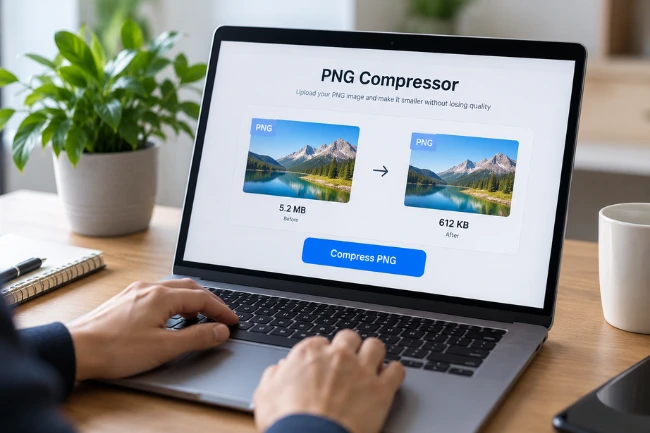
Manually optimizing every image can become time-consuming, especially when you are working with multiple graphics for websites, articles, product pages, or marketing campaigns.
Browser-based tools provide a simpler alternative. Instead of installing specialized software, you can upload an image, optimize it, and prepare the smaller version for your project.
For example, an online PNG compressor can help simplify the process by allowing users to optimize PNG files directly through a browser. This can be useful when you need a quick solution without adding another desktop application to your workflow.
Resize Before You Compress
Compression is not always the first step you should consider.
If an image is much larger than the space where it will actually appear, reducing its dimensions can have a significant effect on the final file size.
Imagine a blog displays an image at 800 pixels wide, but the original file is 3000 pixels wide. There may be little practical benefit in keeping all those extra pixels.
Before uploading an image, consider:
- Where will it be displayed?
- What dimensions are actually required?
- Will users view it on mobile devices?
- Does it need to remain at its original resolution?
Removing unnecessary dimensions can make images easier to store, upload, and serve.
Preserve Transparency When It Matters
PNG stands out because it allows images to keep transparent backgrounds without losing their edges.
This makes PNG particularly useful for:
- Company logos
- Website icons
- App interface elements
- Product graphics
- Decorative overlays
- Digital illustrations
When optimizing these files, transparency should be considered before switching to another format. A smaller file is not necessarily better if changing the format causes unwanted background colors or visual artifacts.
Choosing the proper format comes down to the image content and its intended purpose.
PNG Compression and Website Performance
Website speed is influenced by many factors, and image files are one part of the overall equation.
Large images increase the amount of data a webpage must deliver to users. On slower connections or mobile networks, this can become more noticeable.
Reducing image weight can cut page data usage, improve loading speed, and give users a smoother browsing experience.
For websites with hundreds of images, the cumulative difference can become significant. Optimizing files individually may seem like a small task, but consistent image optimization can make a larger difference across an entire content library.
Choose the Right Images to Optimize
Not every image needs the same treatment.
A practical workflow is to identify the files that are most likely to benefit from optimization. These often include:
Large Screenshots
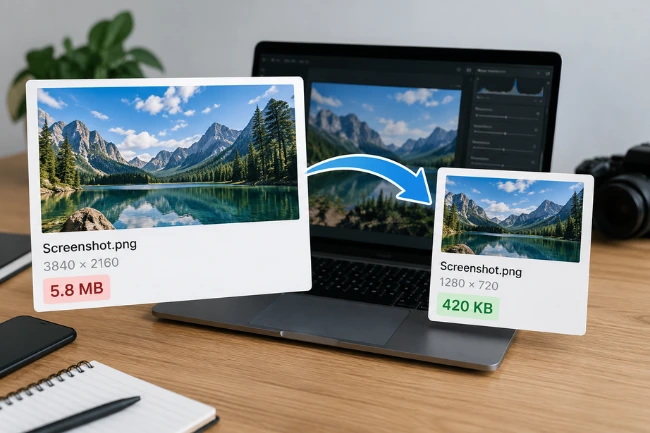
Screenshots can become surprisingly large because they frequently contain a lot of visual information. Reducing their dimensions and compressing them can make them much easier to use online.
Website Graphics
Banners, interface graphics, and decorative elements should be optimized according to their actual display size.
Logos and Icons
These usually need sharp edges and clean details. PNG can remain an excellent choice, especially when transparency is required.
Blog Images
Images used inside articles should be large enough to remain clear but not unnecessarily oversized.
Keep the Original File
Before compressing an important image, keep an original copy somewhere safe.
This is particularly useful for business assets, product images, branding materials, and design resources. If the optimized version is later found to be too small or unsuitable for another purpose, the original can be used to create a new version.
A simple folder structure can also help keep original and optimized files separate.
For example:
Original Files → Optimized Files → Web Uploads
This prevents accidental overwriting and makes future updates easier.
Check the Result After Compression
Image optimization involves more than simply reducing the file size. Always inspect the compressed image before publishing it.
Look for:
- Blurry text
- Missing details
- Visible artifacts
- Incorrect transparency
- Unexpected color changes
- Reduced sharpness around edges
An image that is a few kilobytes smaller is not necessarily an improvement if its quality has noticeably deteriorated.
The goal should be practical optimization rather than achieving the smallest possible number.
Make Image Optimization Part of Your Workflow
Instead of treating compression as something to do only when a website becomes slow, make it part of your normal content process.
A simple workflow could look like this:
Create or download the image → Resize if necessary → Compress the PNG → Check visual quality → Rename the file clearly → Upload it
This approach reduces the chances of accidentally publishing unnecessarily large files.
It also makes image management more consistent when working with large amounts of content.
Final Thoughts
PNG remains a valuable image format for graphics that require sharp details, transparency, and reliable visual quality. However, large PNG files do not always need to remain large.
By choosing sensible dimensions, removing unnecessary file weight, using compression tools, and checking the final result, you can create a more efficient image workflow without sacrificing the appearance of your content.
Whether you manage a website, publish articles, create digital graphics, or simply work with images regularly, smart PNG optimization is a small habit that can make your files easier to handle and your online content more efficient.

Noah Sterling is a technology research writer with 8+ years of experience covering emerging technologies, software trends, digital tools, and innovation. He creates practical, research-based articles to help readers understand the evolving technology landscape.