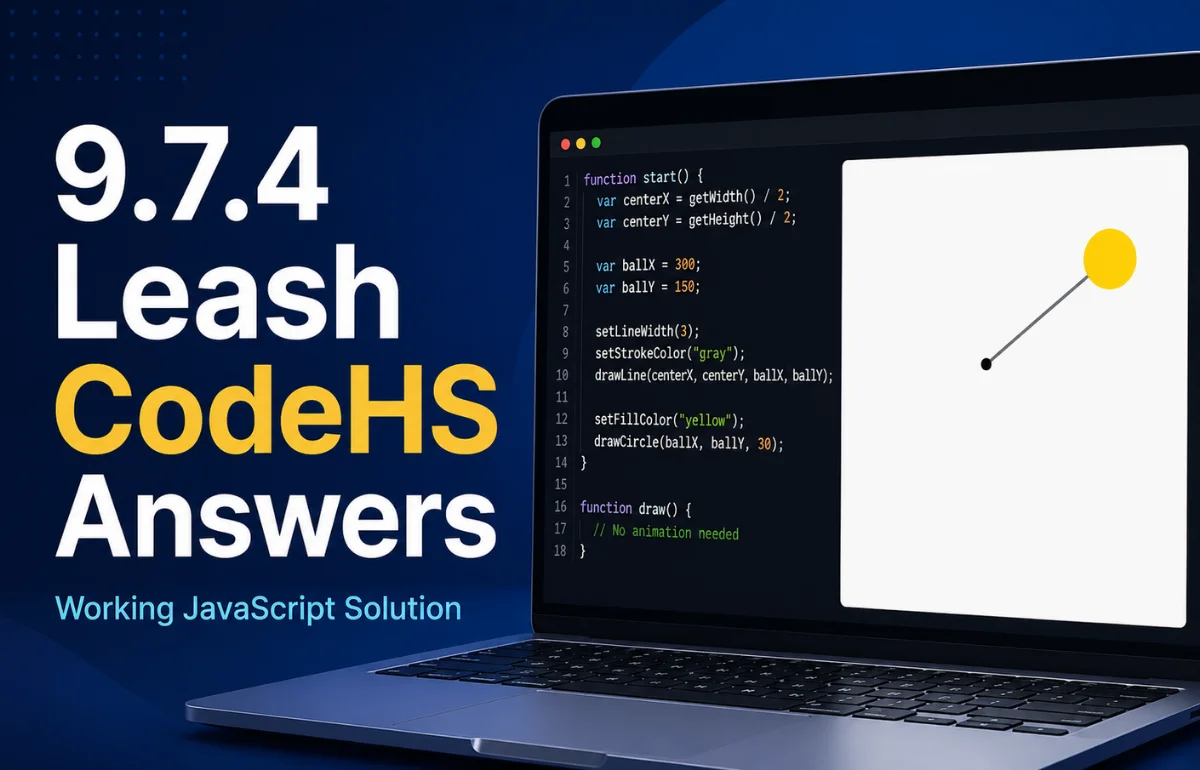
9.7.4 Leash CodeHS answers refers to the JavaScript graphics solution for the CodeHS Leash exercise, where a ball follows the mouse while a line connects that ball to a fixed point in the center of the canvas. The program creates a Circle and a Line, detects mouse movement with mouseMoveMethod(), then updates the ball position and the line endpoint using the mouse’s X and Y coordinates.
The key idea is simple: the start of the leash stays fixed while the other end and the ball move together. If your ball moves but the line does not, or the line appears on top of the ball, the problem is usually object positioning, drawing order, or the mouse event function rather than complicated JavaScript logic.
Before writing this explanation, I checked the current CodeHS JavaScript graphics documentation. The methods used here—including Circle(), Line(), setPosition(), setEndpoint(), getWidth(), getHeight(), and mouseMoveMethod()—are part of the CodeHS graphics system.
What Does the 9.7.4 Leash Exercise Ask You to Do?
The Leash activity is an interactive graphics exercise rather than a traditional program that prints an answer to the console.
The basic goal is to create two connected graphical objects:
- A ball represented by a circle
- A leash represented by a line
At the beginning of the program, both should meet in the center of the graphics canvas.
When the user moves the mouse, the ball should move to the mouse location. At the same time, the movable endpoint of the line should move to exactly the same coordinates.
The other end of the line remains in the center.
That creates the appearance that the ball is attached to a leash and being pulled around the screen.
Publicly indexed versions of the assignment describe the same behavior: the line begins at the center, the ball is positioned at its endpoint, and mouse movement changes both the ball location and line endpoint.
A Working 9.7.4 Leash CodeHS Answer
Here is a clean implementation of the required logic:
var BALL_RADIUS = 30;
var ball;
var leash;

function start() {
    var centerX = getWidth() / 2;
    var centerY = getHeight() / 2;

    leash = new Line(centerX, centerY, centerX, centerY);
    add(leash);

    ball = new Circle(BALL_RADIUS);
    ball.setPosition(centerX, centerY);
    ball.setColor(Color.yellow);
    add(ball);

    mouseMoveMethod(moveLeash);
}

function moveLeash(e) {
    var mouseX = e.getX();
    var mouseY = e.getY();

    leash.setEndpoint(mouseX, mouseY);
    ball.setPosition(mouseX, mouseY);
}
This version creates the graphics objects once when the program starts and only changes their positions when the mouse moves.
I prefer this approach because it keeps initialization and movement separate. There is no reason to continually remove the circle, create another circle, or create another line every time the mouse changes position.
How the Leash Code Works
Understanding the answer is more useful than memorizing it because the same event-driven pattern appears in many later graphics exercises.
1. Setting the Ball Radius
The program begins with:
var BALL_RADIUS = 30;
This gives the circle a radius of 30 pixels.
Keeping the radius in a variable also makes the code easier to change. If you later want a larger ball, you only need to modify one value.
2. Creating a Fixed Center Point
The program calculates:
var centerX = getWidth() / 2;
var centerY = getHeight() / 2;
getWidth() returns the canvas width, while getHeight() returns its height. Dividing both values by two gives the center coordinates.
CodeHS documents these functions specifically for finding positions on its graphics canvas.
This approach is better than hard-coding something such as (200, 250) because the program continues to work even if the canvas dimensions are different.
3. Creating the Leash
The line starts and ends at the center:
leash = new Line(centerX, centerY, centerX, centerY);
add(leash);
At first, the line may barely be visible because both endpoints occupy exactly the same position.
That is expected.
After the mouse moves, only the second endpoint changes.
CodeHS provides setEndpoint(x, y) specifically for changing a line’s ending coordinates.
4. Creating the Ball
Next, the program creates the circle:
ball = new Circle(BALL_RADIUS);
ball.setPosition(centerX, centerY);
ball.setColor(Color.yellow);
add(ball);
The position given to a CodeHS Circle represents the center of that circle.
This matters because we want the mouse coordinates, circle center, and line endpoint to match exactly.
There is no need to subtract the ball radius from the mouse position.
5. Listening for Mouse Movement
This line connects mouse movement to our movement function:
mouseMoveMethod(moveLeash);
CodeHS defines mouseMoveMethod() as a way to assign a callback function that runs when a mouse-movement event occurs.
Instead of repeatedly checking where the mouse is, the program waits for an event.
When movement happens, CodeHS calls moveLeash() and passes information about that event to it.
6. Reading the Mouse Coordinates
Inside the event function, we use:
var mouseX = e.getX();
var mouseY = e.getY();
These values represent the current mouse position on the graphics canvas.
The same X and Y coordinates are then given to both graphical objects:
leash.setEndpoint(mouseX, mouseY);
ball.setPosition(mouseX, mouseY);
This shared coordinate is the most important piece of the whole exercise.
If the ball and line use different coordinates, they will appear disconnected.
9.7.4 Leash CodeHS Methods and Their Purpose
| CodeHS element | What it does in the Leash program |
|---|---|
Circle(radius) | Creates the ball |
Line(x1, y1, x2, y2) | Creates the leash |
getWidth() | Gets the width of the graphics canvas |
getHeight() | Gets the height of the graphics canvas |
setPosition(x, y) | Moves the center of the ball |
setEndpoint(x, y) | Moves only the ending point of the leash |
mouseMoveMethod(function) | Runs a function when the mouse moves |
e.getX() | Gets the current mouse X coordinate |
e.getY() | Gets the current mouse Y coordinate |
add(object) | Places a graphical object on the canvas |
One distinction that often causes trouble is the difference between setPosition() and setEndpoint().
For the Circle, setPosition() is what we want.
For the Line, CodeHS documents setPosition() as changing its starting point, while setEndpoint() changes its ending point. Since the center anchor of our leash must stay fixed, the movement function should change the endpoint rather than the starting position.
Why Should You Create the Objects Only Once?
A common beginner solution repeatedly creates a new Circle or Line inside the mouse event function.
It may seem logical: the mouse moved, so draw another object in the new position.
That is unnecessary.
A cleaner model is:
- Create the objects during
start(). - Store them in variables.
- Change their existing positions whenever an event occurs.
This introduces an important programming concept: object references.
The variable ball continues to refer to the same Circle object after start() finishes. The leash variable does the same for the Line.
The mouse callback therefore modifies objects that already exist instead of rebuilding the graphics scene every time the cursor moves.
This pattern becomes valuable later when working with animation, games, draggable interfaces, and interactive applications.
Why Is My Leash Line Covering the Ball?
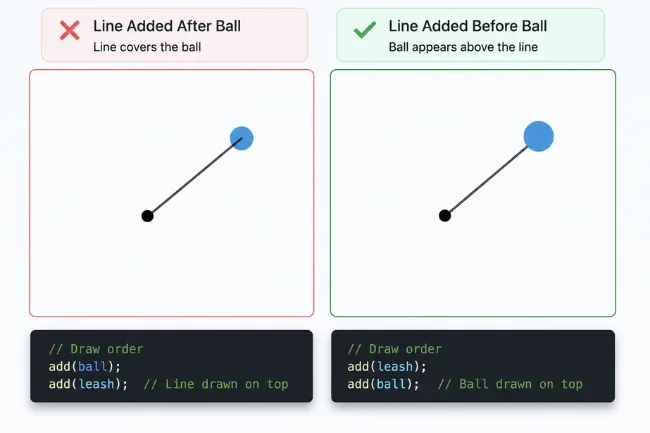
This is one of the more interesting problems with the exercise.
Suppose you create and add the ball first:
add(ball);
add(leash);
Depending on drawing order, the line may appear above the ball.
The CodeHS graphics documentation explains that graphics can have layers, and objects on higher layers are drawn above objects on lower ones.
For a simple Leash solution, an easy approach is to add the line first and the ball second:
add(leash);
add(ball);
That allows the ball to appear visually above the leash.
For more controlled graphics projects, you can also work with the object’s layer property.
This drawing-order detail is easy to overlook because the movement logic can be completely correct while the output still looks wrong.
Common 9.7.4 Leash Problems and Fixes
When I troubleshoot this type of graphics exercise, I separate problems into three areas: initialization, event handling, and object updates.
That usually finds the mistake faster than rewriting the whole program.
| Problem | Likely cause | What to check |
|---|---|---|
| Ball does not move | Mouse callback is missing or incorrect | Confirm mouseMoveMethod(moveLeash) |
| Line does not move | Wrong Line method | Use setEndpoint() |
| Ball and leash separate | Different coordinates are being used | Give both objects e.getX() and e.getY() |
| Entire line moves | Starting point is being changed | Do not update the fixed center point |
| Line covers the ball | Drawing/layer order | Add the line before the ball |
| Many circles appear | Circle is recreated during every event | Create it once in start() |
| Program starts in the wrong place | Center is hard-coded incorrectly | Use getWidth()/2 and getHeight()/2 |
| Mouse movement does nothing | Callback function was called instead of passed | Use mouseMoveMethod(moveLeash), not mouseMoveMethod(moveLeash()) |
The Callback Parentheses Mistake
This deserves extra attention.
You want:
mouseMoveMethod(moveLeash);
not:
mouseMoveMethod(moveLeash());
The first version gives CodeHS a reference to the function so it can call that function later when a mouse event occurs.
The second tries to execute the function immediately.
That small pair of parentheses changes the meaning of the code.
Understanding the Coordinate Relationship
The Leash program becomes much easier when you think about it as coordinates rather than as a picture of a ball and rope.
There are really only three important points:
- Fixed center:
(centerX, centerY) - Current mouse location:
(mouseX, mouseY) - Ball center:
(mouseX, mouseY)
The leash runs from:
(centerX, centerY)
        to
(mouseX, mouseY)
The ball is centered at:
(mouseX, mouseY)
Because the ball center and line endpoint always use the same pair of coordinates, they remain visually attached.
That is the central logic behind the entire exercise.
9.7.4 Leash vs. 4.7.4 Leash
You may find older discussions referring to the exercise as 4.7.4 Leash rather than 9.7.4 Leash.
For example, archived CodeHS student discussions show essentially the same Circle, Line, mouseMoveMethod(), and setEndpoint() exercise under the 4.7.4 numbering.
This can happen because course organization and lesson numbering may differ between versions or curricula.
If you find an older 4.7.4 solution, compare the actual assignment requirements rather than assuming the lesson number alone determines whether the answer applies.
The behavior is what matters: a fixed line anchor, moving endpoint, and ball following the mouse.
Why Some 9.7.4 Leash Answers Online Look Completely Different
Search results for this keyword are surprisingly inconsistent.
Some pages describe the task as a Python exercise involving user input, leash length, numeric values, and if/else statements. Other pages correctly describe the interactive JavaScript graphics activity.
The publicly indexed Leash assignment and CodeHS’s current graphics documentation support the graphics interpretation: Circle and Line objects, mouse events, canvas coordinates, setPosition(), and setEndpoint().
That is why I would check the instructions shown inside your own CodeHS course before copying any answer from a search result.
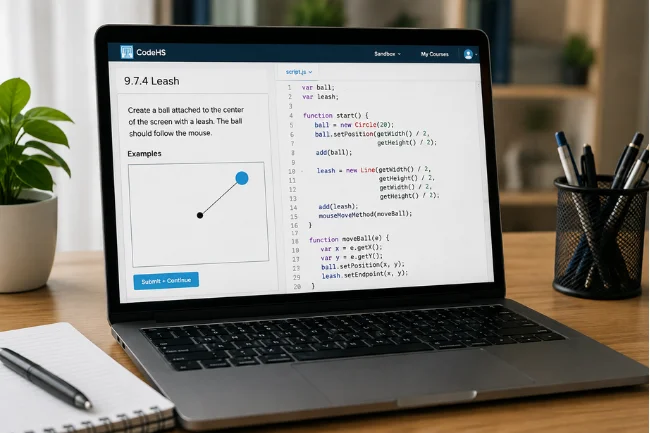
If your instructions mention a ball, line, center of the screen, and mouse movement, the graphics solution discussed here is the relevant one.
How to Test Your Leash Program Properly
Do not stop testing just because the program runs without an error.
Move your mouse around the entire canvas and check the behavior.
Your finished program should pass these visual checks:
- The ball begins at the center.
- The leash begins at the center.
- The ball follows the cursor when the mouse moves.
- The moving endpoint of the leash stays attached to the center of the ball.
- The other endpoint remains fixed in the canvas center.
Also move the mouse toward all four corners.
This helps expose problems where only one coordinate is being updated. For example, if you accidentally update X but not Y, horizontal movement may look correct while vertical movement fails.
What This Exercise Is Actually Teaching
The code for 9.7.4 Leash is short, but the concepts behind it are useful beyond one CodeHS assignment.
First, it teaches event-driven programming. Your program responds to something the user does instead of simply executing every instruction from top to bottom and ending.
Second, it teaches object state. A Circle exists with a particular position, and your program can modify that existing state.
Third, it teaches coordinate-based graphics. Objects on a digital canvas are positioned mathematically using X and Y values.
Finally, it teaches synchronization. Two independent graphics objects—the Line and Circle—appear connected because the program updates them with the same coordinates at the same time.
Once that idea makes sense, exercises involving dragging, aiming, character movement, drawing tools, and basic game interaction become easier to understand.
FAQs About 9.7.4 Leash CodeHS Answers
What is the answer to 9.7.4 Leash on CodeHS?
The solution creates a Circle and a Line, keeps one end of the line centered, and updates both the ball position and line endpoint whenever the mouse moves.
What programming language is 9.7.4 Leash CodeHS?
The commonly indexed Leash graphics exercise uses JavaScript with the CodeHS graphics library and methods such as Circle(), Line(), and mouseMoveMethod().
Why is my line not moving in CodeHS Leash?
Make sure your mouse event function calls line.setEndpoint(e.getX(), e.getY()). Updating the wrong point of the line can keep the leash from behaving correctly.
Why does the line appear over the ball in the Leash exercise?
The issue may be drawing order. Add the line before adding the ball, or use graphics layers so the ball is rendered above the leash.
What does mouseMoveMethod do in CodeHS?
mouseMoveMethod() registers a callback that runs whenever the mouse moves, allowing the program to read the new cursor coordinates and update graphics.
Final Takeaway
The cleanest way to solve 9.7.4 Leash CodeHS answers is to think of it as one fixed coordinate and one moving coordinate. Create the Line and Circle once, register one mouse-movement callback, and update the line endpoint and ball with the same X and Y values.
If your code is still failing, compare it against the troubleshooting table instead of immediately replacing everything. Check the callback, the endpoint method, the center calculation, and drawing order one at a time.
Once your ball follows the mouse while the other end of the leash remains fixed at the center, you have not only solved the assignment—you have also practiced the event-driven graphics pattern that appears repeatedly in interactive JavaScript programs.

Noah Sterling is a technology research writer with 8+ years of experience covering emerging technologies, software trends, digital tools, and innovation. He creates practical, research-based articles to help readers understand the evolving technology landscape.